


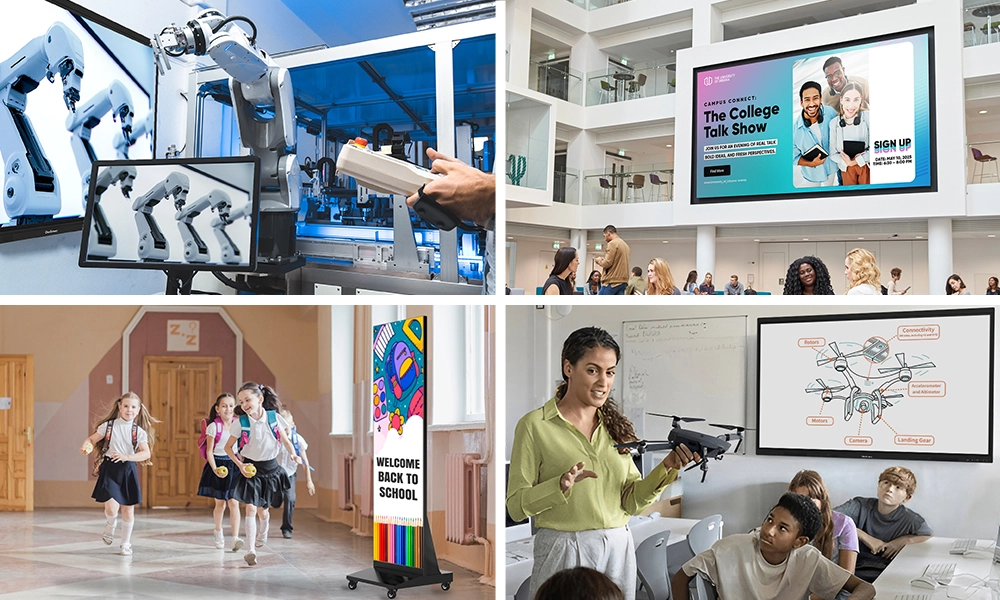






Quick answer: Classroom technology is the hardware and software a school provides to teachers and students to make lessons interactive. In 2026, the shortlist is narrow: an interactive flat panel at the front of the room, student tablets or Chromebooks, a document or microscope camera, robotics kits, a 3D printer, and the AI software layer that ties them together.
What you will find below:
- Interactive flat panels
- Tablets and student devices
- Document and microscope cameras
- Classroom robotics
- 3D printers
- AI classroom software
Each section covers what the tool does, what it costs in practice, which grades it suits, and the mistake schools make when they buy it.
Table of Contents
Classroom technology in 2026: what changed
The pandemic-era question was how to keep remote students connected. That question is settled. The question now is which classroom technology earns its place on a tight capital budget and still gets used in year three.
Most schools already own more technology than they use. A cart of tablets sits charging in a closet. A panel at the front of the room gets used as a projector. The gap is rarely the hardware. It is training, and it is buying tools that need a laptop, a dongle, and a login before anything happens.
The research on interactive learning is encouraging but often overstated in vendor marketing. A Carnegie Mellon analysis of interactive online courses found that learners who worked through activities rather than reading or watching gained roughly six times as much as passive learners, though that was examined at MOOCs, not K-12 classrooms (EducationWorld summary). Treat it as directional. The practical finding most schools report is simpler: students who touch the content participate more than students who watch it.
The six categories below are the ones that still get used after the novelty wears off.
Benefits of OneScreen Smart Boards in the Classroom
EdTechDigest.com’s Top 40 Digital Tools (chosen by teachers and students)
Based on data from EdTech Digest and our own research, we’ve compiled a handful of the most popular digital tools used by teachers and students alike in schools worldwide. All of the following technologies are relatively simple to acquire and are sure to soon become expected standards in the new hybrid learning environment.
Tablets and student devices
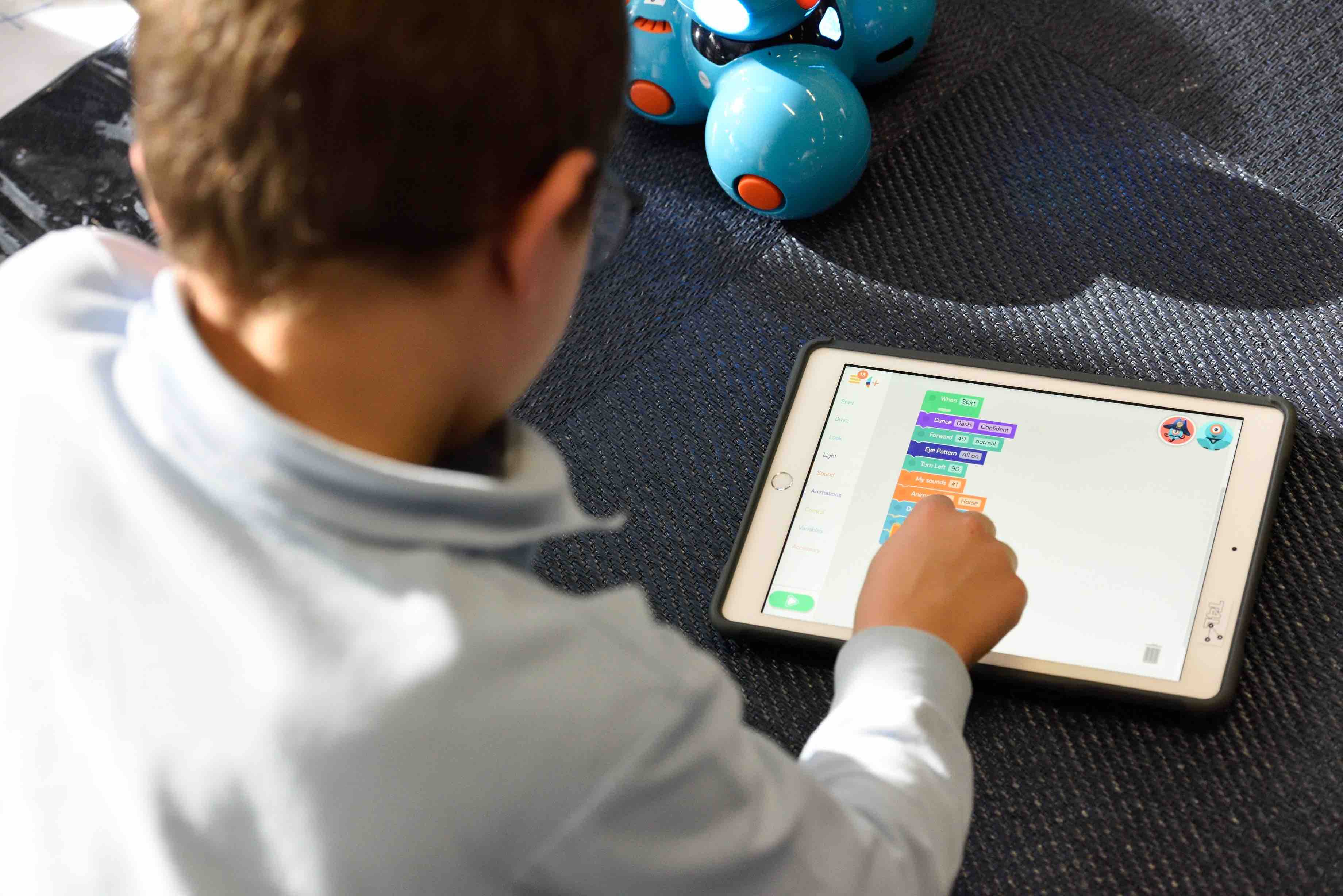
Most US districts are at or near one device per student, so the buying question has moved from whether to how the device connects to the front of the room.
A tablet on its own is a worksheet with a battery. A tablet that casts to the panel changes the lesson. A student solves a problem at their desk, mirrors it to the board, and the class works on it together. OneScreen Share handles that wirelessly across iPadOS, Android, Windows, macOS, and ChromeOS, so you are not standardizing the whole school on one device family.
What matters when you buy:
- Casting without an app install. If students need an account and a download, half the class never gets on screen.
- Number of simultaneous connections. Four devices on screen at once turns a presentation into a comparison exercise.
- Case and battery life, not specs. Elementary devices get dropped. Buy the case first.
The mistake schools make. Buying devices before deciding what runs on them. Pick the two or three apps teachers will actually use, then buy the device that runs them well.

Document and microscope cameras
A traditional microscope serves one eye at a time, which is why a biology lab needs thirty of them. A microscope camera sends the same specimen to the panel so the whole class can see it together, and the teacher can annotate the live image.
The same hardware category covers document cameras, which matter more day-to-day. A teacher puts a student’s handwritten work, a textbook page, or a dissection under the lens and the room looks at one thing. That single shared focus is the reason this is the cheapest high-impact purchase on the list, usually $80 to $400 per unit.
Best fit: science labs, elementary reading groups, art demonstrations, and any lesson where the teacher needs to model a physical process.
The mistake schools make. Buying a 4K camera and plugging it into a 1080p display chain. Check the panel input before you spend up.
Interactive flat panels
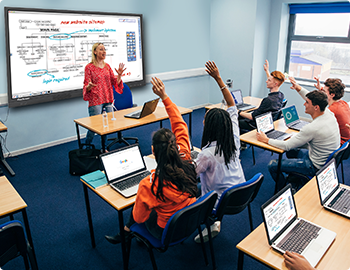
The interactive flat panel replaced the projector and the whiteboard in one move, and it is the anchor purchase. Everything else in this list plugs into it.
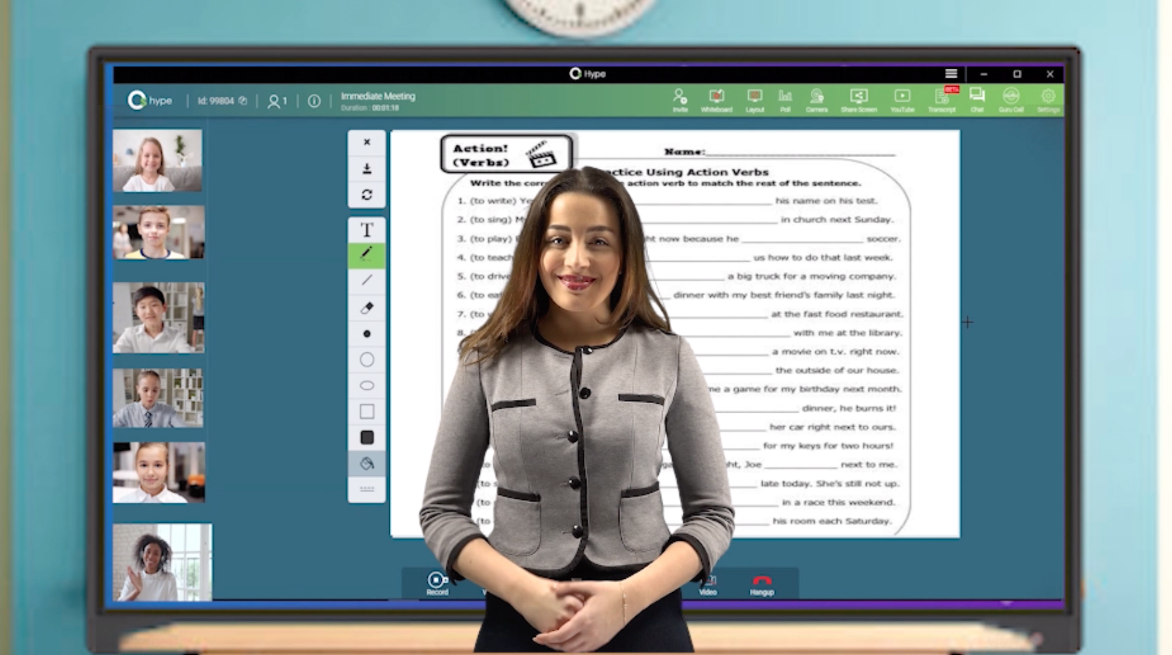
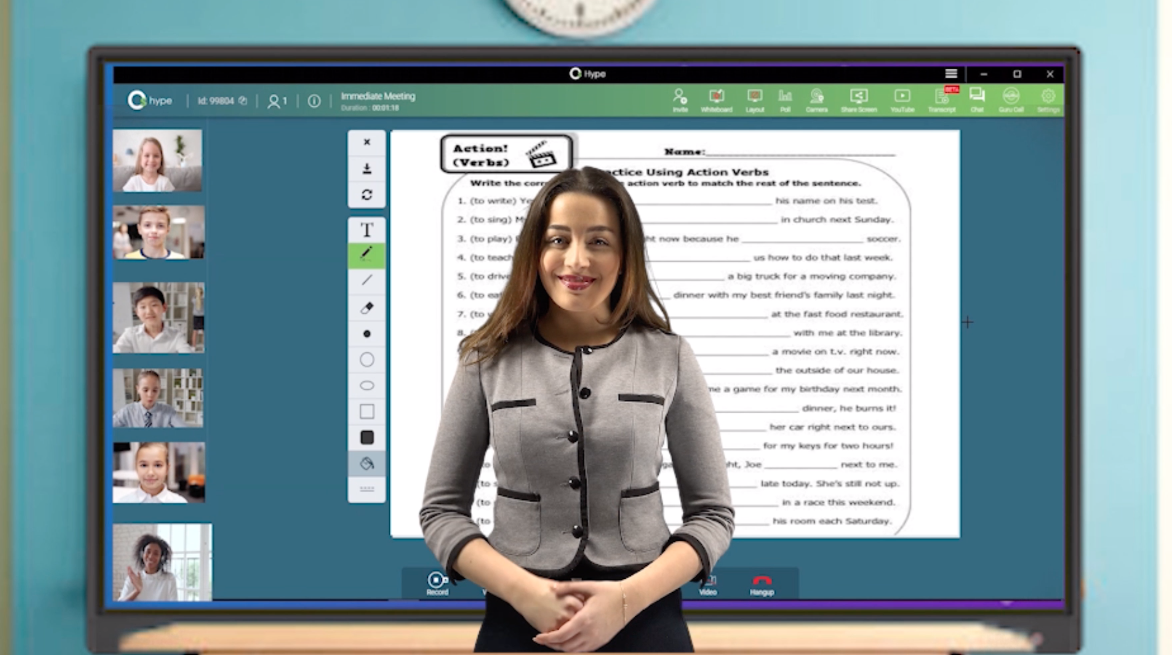
A current panel is a 4K touchscreen with a built-in computer. Teachers write on it, open a browser, cast from a tablet, run a quiz, and save the annotated lesson to send to absent students. No laptop, no cart, no dongle.
OneScreen’s education lineup covers four room sizes and budgets:
| Model | Best for | What stands out |
|---|---|---|
| Touchscreen Core | Standard classrooms | EDLA certified, so Google Play and Google Classroom run natively |
| Touchscreen Titan | Large rooms, lecture halls | Biggest sizes, built for distance viewing |
| Touchscreen T7 | The volume pick for districts | Balanced spec, the model most schools standardize on |
| Touchscreen TL7 | Tighter budgets | Core touch and casting without the extras |
| LED Video Wall | Auditoriums, STEM labs | Seamless large-format display |
The mistake schools make. Buying based on screen size and touchpoints alone. Check the writing latency with a pen, not a finger, and check whether the panel runs without a connected laptop. A panel that needs a teacher laptop to do anything useful becomes a projector within a term.
If you are comparing brands, the interactive smartboard buyer’s guide walks through the specs that matter, and the top 10 interactive smart boards for 2026 compares the main vendors side by side.
Classroom robotics
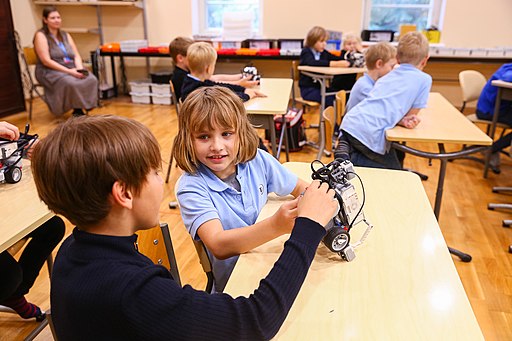
Robotics kits teach sequencing, debugging, and teamwork, and they do it in a form students treat as play. Entry kits for K-5 run $60 to $200 per unit. Secondary kits with real sensors and motors run $300 to $900.
The subject range is wider than people expect. Robotics shows up in maths through angles and ratios, in English through writing build documentation, in languages through command vocabulary, and in physics through torque and gearing.
Buy in sets of one kit per three students, not one per student. Pair work is where the arguing and the learning happens, and it cuts the budget by two-thirds.
The mistake schools make. Buying the kit without the curriculum. A robotics kit with no lesson sequence attached is a cupboard ornament by November. Ask the vendor for the scheme of work before the purchase order.
3D printers
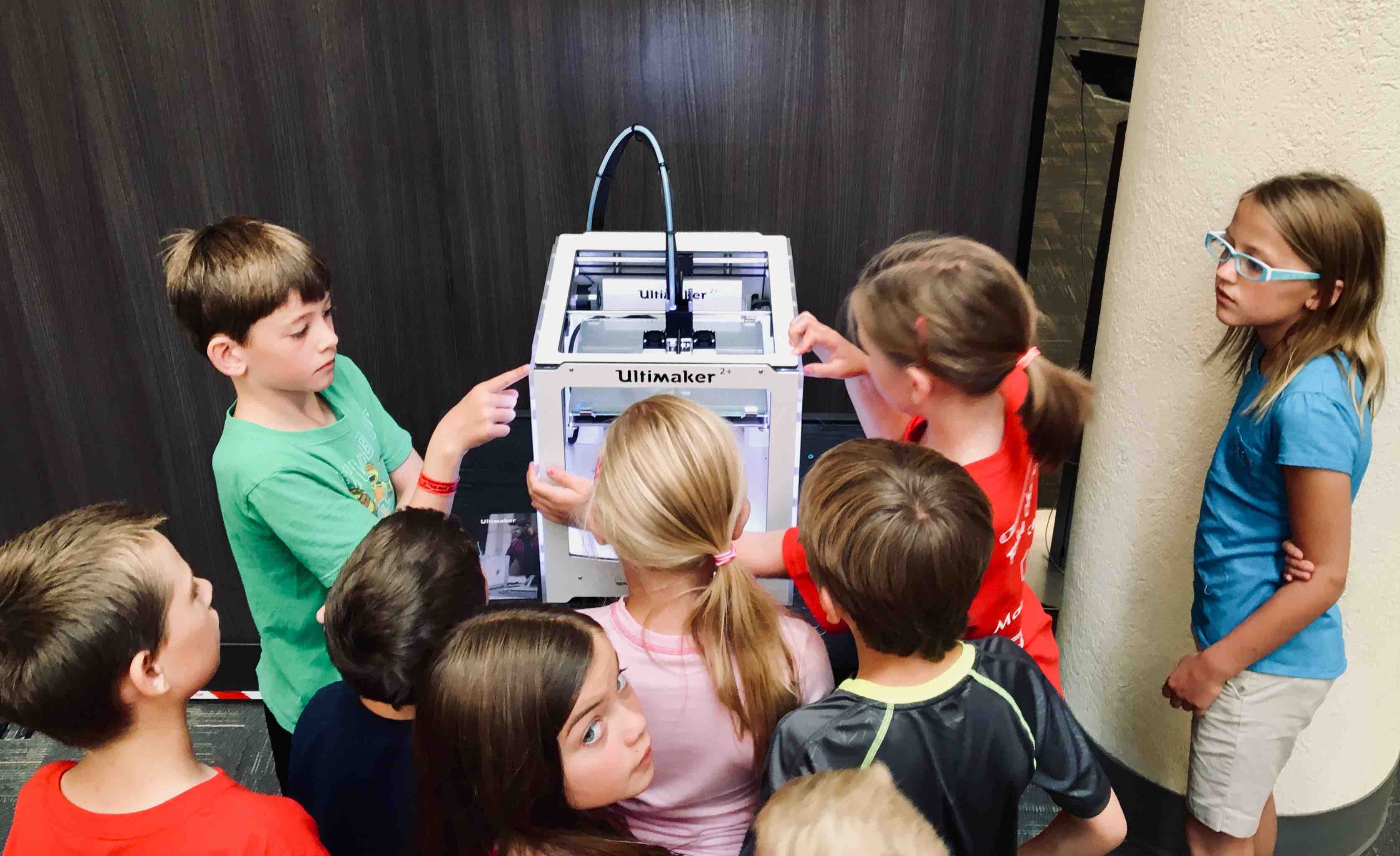
A 3D printer turns an abstract diagram into something a student holds. Print a cross-section of a volcano, a replica fossil for an archaeology dig, a molecular model of glucose, a scale model of a pyramid.
School-grade printers now start around $250, and enclosed classroom models with filtration run $600 to $1,500. The enclosure matters more than the price. An open printer in a room with thirty children is a burn hazard and a ventilation problem.
Run one printer per department, not per classroom. Print times are measured in hours, so a shared printer with a booking sheet serves a whole faculty without sitting idle.
The mistake schools make. Underestimating the design step. Students need CAD time before anything prints, so budget lesson hours for Tinkercad or similar, not just the hardware.
AI classroom software
This category did not exist when this post was first written. It is now the part teachers mention first because it gives back time rather than adding a device for learning.
| App | What it does | Time it saves |
|---|---|---|
| Lessn | Builds a lesson from a topic and a year group | Lesson planning |
| QuizWiz | Runs in-class assessments on the panel | Marking and exit tickets |
| Scrybe | Live transcription of the lesson | Notes for absent and EAL students |
| SuprNotes | Shared note-taking across devices | Group work capture |
| Central | IT console for every panel in the district | Updates, power schedules, usage reporting |
Translation sits in this category too. If you teach multilingual classes, the best translation app guide and the English to Spanish translation app comparison cover the options schools use.
The mistake schools make. Treating AI software as a bonus rather than a selection criterion. Two panels with similar specs can differ by hours of teacher time per week depending on what runs on them.
Classroom technology compared
How the six categories compare on the things that decide a rollout: how much work it takes to install, how much training teachers need, and what it displaces.
| Technology | Setup effort | Teacher training | Best grades | What it replaces |
|---|---|---|---|---|
| Interactive flat panel | Mount and network once | 2 to 4 hours | K-12 and higher ed | Projector, whiteboard, speakers |
| Tablets and student devices | Enrolment and MDM | 1 to 2 hours | K-12 | Workbooks, handouts |
| Document or microscope camera | Plug in | 15 minutes | K-12, strongest in science | Class sets of microscopes |
| Robotics kits | Assembly and charging | 4 to 8 hours | Grade 3 and up | Nothing; it adds a subject |
| 3D printer | Calibration and ventilation | 4 to 6 hours | Grade 6 and up | Model kits, printed diagrams |
| AI classroom software | Sign-in | 30 minutes | K-12 | Manual planning and marking |
If you are buying one thing this year, buy the panel. It is the only item on the list that every teacher in the building touches every day, and the other five categories get more useful once it is there.
How to choose and in what order
- Fix the display first. One panel per classroom, standardized on a single model so training and spares work across the district.
- Budget training at 10% of hardware spend. Unused technology is the single largest source of waste in school IT. OneScreen GURU gives free live help 24 hours a day, five days a week, which removes that line from the budget entirely.
- Check the device mix you already own. Buy a casting solution that works across iPadOS, Android, Windows, macOS, and ChromeOS rather than replacing devices to match a panel.
- Add the shared specialist tools. One document camera per science and elementary room, one 3D printer per department, robotics kits at one per three students.
- Plan the refresh. A panel lasts seven to ten years. Tablets last three to four. Build the replacement cycle into the first purchase order, not the fourth.
For a deeper look at how interactive displays change lesson outcomes, see touchscreen education and learning outcomes and how touchscreens improve classroom collaboration.
Real schools, real results
The argument for any of this holds up better with a district name attached to it. Our education case studies cover K-12 districts and universities, from small rural schools to large metropolitan systems, with the constraints each one worked under. The customer reviews page has the unedited version from the IT directors and teachers who run these rooms.
If you are scoping a rollout, request a quote or talk to our team about room counts, device mix, and what your existing infrastructure can carry.
Frequently asked questions
What is classroom technology?
Classroom technology is the hardware and software a school uses to deliver and support lessons. It covers interactive flat panels, student tablets, document and microscope cameras, robotics kits, 3D printers, and the lesson planning and assessment software that runs on them.
How do you use technology in the classroom?
Start with one shared display every teacher uses daily, then let student devices cast to it. Use assessment apps for live checks instead of paper exit tickets, and reserve specialist tools such as 3D printers and robotics kits for project work across a department.
How to integrate technology in the classroom without overwhelming teachers?
Introduce one tool per term and train on it properly. Pick tools that work without a laptop or a login. Give teachers a named support route for the first six weeks. Measure usage after 90 days and drop anything nobody opened.
How do teachers use technology in the classroom day-to-day?
Most teachers use three things: the panel for delivering and annotating lessons, a casting tool to pull student work onto the screen, and a quiz app for quick checks. Everything else is occasional and subject-specific.
How to incorporate technology in the classroom on a small budget?
A document camera gives the highest return per dollar of anything on this list. After that, use the devices students already own with a cross-platform casting tool. Save capital for one interactive flat panel per room and phase the rollout by year group.
What classroom technology devices do schools buy most?
Interactive flat panels and student tablets or Chromebooks account for most school technology spend. Document cameras, robotics kits, and 3D printers are departmental purchases bought in smaller numbers and shared across classrooms.
