









Quick answer: The best interactive flat panel display for most schools in 2026 is the OneScreen Touchscreen Titan, thanks to its Mini-LED screen, Android 15, and included 24/5 live GURU support plus a 3-year warranty.
For districts watching their budget, the OneScreen Touchscreen Core delivers the same teaching tools at a lower price, and the OneScreen Touchscreen T7 sits comfortably in the middle. Promethean’s ActivPanel 9 and ViewSonic’s ViewBoard round out the list as strong, education-tested alternatives.
If you have ever watched a teacher fight with a projector that won’t connect five minutes before the bell, you already know why schools are moving on. The chalk-and-dry-erase era is fading, and the interactive flat panel has become the default screen at the front of the room.
The hard part isn’t deciding whether to buy an interactive flat panel display. It’s choosing which one.
This guide covers five of the best interactive flat panel displays for schools, what makes each worth a look, how they compare on price, touch, and support, and how to match the right board to how your teachers actually teach.
Table of Contents
What is an interactive flat panel display?
An interactive flat panel display is a large touchscreen, usually 65 to 98 inches, that combines a 4K screen, a built-in computer, and classroom software in one all-in-one unit. Think of it as a giant tablet bolted to the wall.
Teachers write with a finger or stylus, open lessons, play video, mirror a student’s device, and run apps, all without a separate PC or projector.
Unlike the old interactive whiteboards that needed a projector and a connected laptop, a modern interactive flat panel runs on its own. Most ship with Android, an optional Windows module, and an education app suite baked in.
You will also see these called interactive whiteboards or interactive displays, and the key upgrade over the old boards is multi-touch support, up to 40 points, so several students can write on the same interactive flat panel at once.
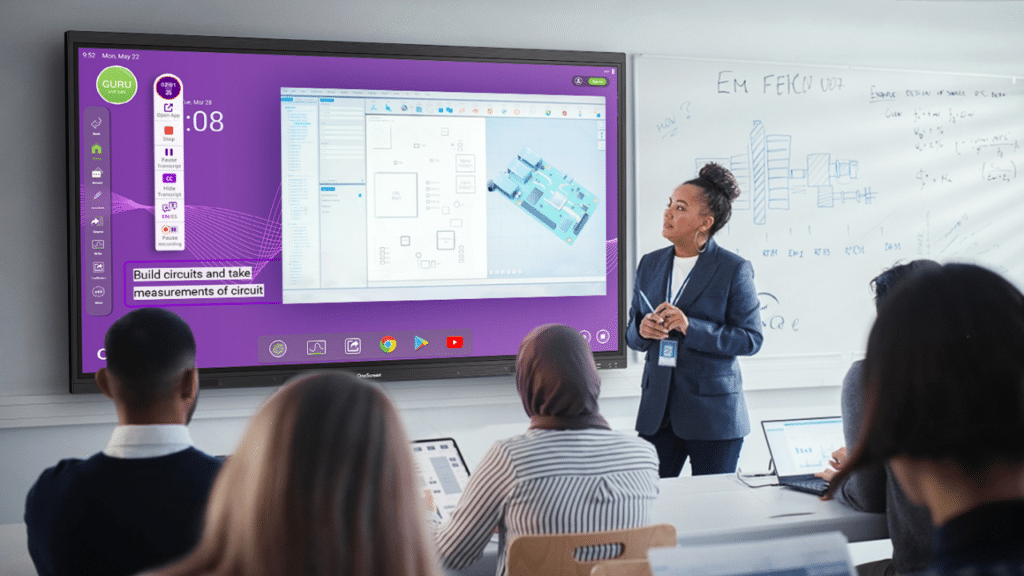
How fast has this caught on? Interactive flat panels overtook projectors in global education shipments back in 2022, and they now make up more than 60% of classroom display purchases worldwide, according to market research from Futuresource Consulting.
The wider interactive flat panel display market was worth about $12.6 billion in 2024 — with education its single largest segment — and is projected to nearly double by 2034. The LED backlights are rated for roughly 50,000 hours, about two decades of normal school use.
Why schools are switching to interactive flat panels
A few practical reasons keep coming up when administrators explain the move to interactive flat panels:
- Lessons start faster. No bulb warm-up, no cable hunting. Tap the screen and teach.
- One device, fewer headaches. Computer, speakers, whiteboard, and screen live in one panel, so there’s less to break and maintain.
- Higher student engagement. Visual, hands-on, multi-user lessons hold attention better than a static slide, which is why interactive flat panels rank among the top-rated displays for student engagement, especially in STEM and other visual subjects and for the many learners who absorb best when they can see and touch.
- Students stay engaged. Visual, hands-on lessons hold attention better than a static slide, which matters for the many learners who absorb best when they can see and touch.
- It works with what teachers already know. A good interactive flat panel display feels like a phone or tablet, so the learning curve is short.
Not every panel is built for a school day, though. Some are repurposed business displays.
The five below were chosen because they handle real classroom wear, real software, and real IT departments.cause they handle real classroom wear, real software, and real IT departments.
The 5 best interactive flat panel displays for the classroom
1. OneScreen Touchscreen Titan (best overall)
The Titan is OneScreen’s flagship, and it earns the top spot as the first Mini-LED interactive flat panel built for education. Mini-LED matters more than it sounds: deeper blacks, higher contrast, and a display roughly three times brighter than a standard panel (up to 1200 cd/m² versus the usual 400).
In a sun-drenched classroom where glare washes everything out, that brightness keeps the lesson readable from the back row.
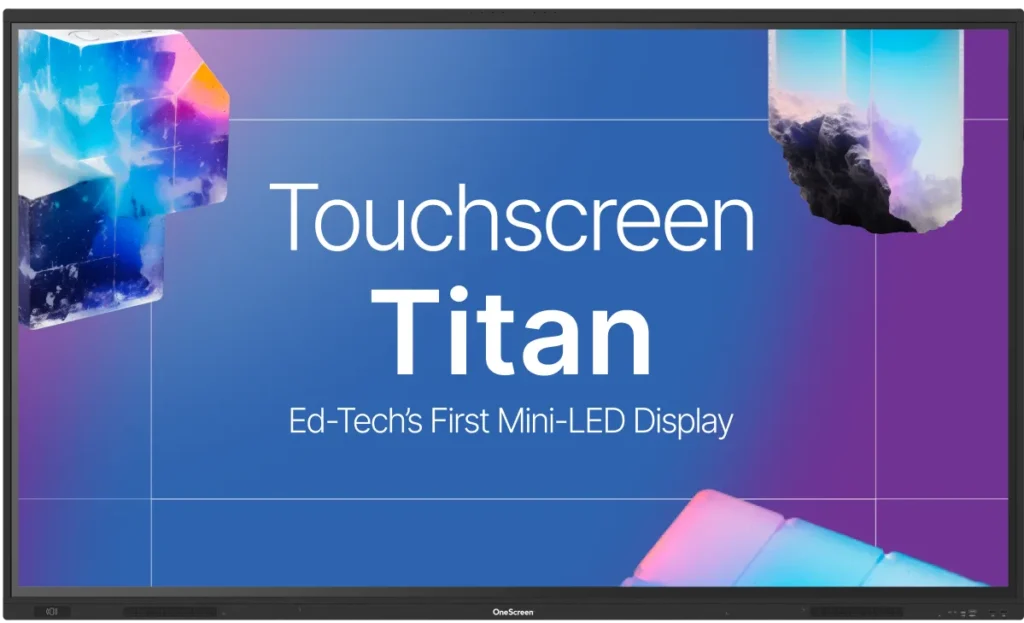
Under the hood it runs an industry-first Android 15 with a 6 TOPS neural processor, an octa-core chip, 16GB of RAM, and 256GB of storage. That is serious horsepower for an interactive flat panel, and it shows when you have a video, a whiteboard, and several apps open at once. Touch is accurate to 1mm across 1.07 billion colors at 4K.
Security runs through EDLA certification, one-tap NFC login, and single sign-on, so a teacher taps a card and lands in their own account without a password. The optional Hubware kit adds a Windows i7 OPS PC and a 4K SnapCam 2 webcam with AI autoframing, turning the Titan into a full video-conferencing station for Blackboard, Canvas, or Moodle.
It comes in 65″, 75″, and 86″ and uses up to 30% less power than comparable boards.
Best for: Schools that want the brightest, most future-proof interactive flat panel display and have the budget to match.
2. OneScreen Touchscreen T7 (best all-rounder)
The T7 is the panel most schools will actually buy. It keeps the Android 15 platform and the polished OneScreen software but trims the price by using a high-quality 4K LED screen instead of Mini-LED. You still get an octa-core processor, 8GB of RAM, and 128GB of storage, which is plenty for everyday teaching.
Where the T7 quietly shines is writing feel and audio. Its Zero Bonding Gen 2 touch with pressure-sensitive IR, stylus support, and palm rejection feels natural and lag-free when you rest your hand and write. Sound is the strongest here, with dual 20W speakers and a 25W subwoofer that fills a room. You can also turn your phone into a document camera and save board work as a QR code for students.
Login is friction-free via one-tap NFC, QR scan, or single sign-on, and it is EDLA-certified with full Google Workspace for Education access. Like the Titan, it offers the Hubware i7 OPS PC and SnapCam 2 upgrade.
Best for: The typical K-12 classroom that wants the latest interactive flat panel display software and great writing feel without paying flagship money.
3. OneScreen Touchscreen Core (best budget pick)
“Skimp-free tech that fits your budget” is how OneScreen pitches the Core, and that is fair. This is the value tier, but it does not feel stripped down. You get a 4K display at 3840 × 2160, an octa-core processor, 8GB of RAM, 128GB of storage, and Android 14. It is the only model that goes up to 98 inches, which makes it the pick for large lecture halls and other big rooms where front-of-classroom visibility matters.
It supports up to 40 touch points at 1mm accuracy for lag-free, multi-user group work, ships with EDLA certification and Google Play, and comes preloaded with the tools teachers reach for: stopwatch, timer, screen recorder, spotlight, freeze, and the OneScreen Write whiteboard with text recognition and an AI lesson library. Two 20W speakers, Wi-Fi 6E, and Bluetooth 5.3 cover the basics.
It works, in OneScreen’s words, just like a tablet, so staff who have never touched an interactive flat panel can usually figure it out on their own.
Best for: Districts equipping many rooms at once, small schools wanting an affordable interactive flat panel, or anyone buying their first panel and wanting low risk.
4. Promethean ActivPanel 9 (the education veteran)
Promethean has been in classrooms for years, and the ActivPanel 9 reflects that experience. It comes in 65″, 75″, and 86″ with a 4K UHD screen, up to 20 touch points, and a unified menu teachers can pull up from any edge. Its ActivInspire and ClassFlow lesson tools have a loyal following, and Promethean’s teacher training and professional development are genuinely good.
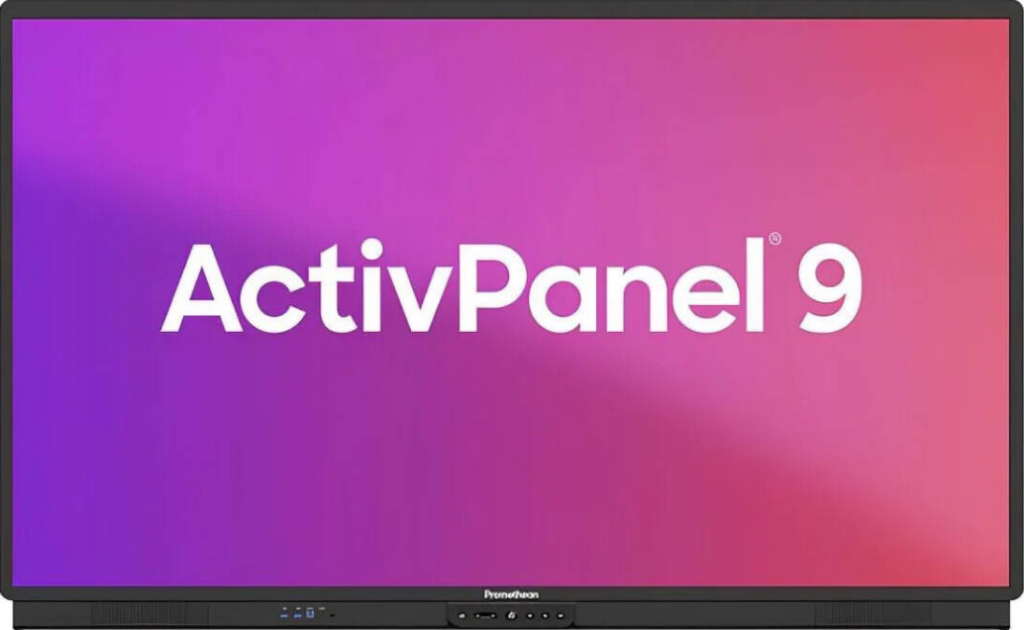
The trade-offs: touch tops out at 20 points where rivals hit 40 or more, and ActivInspire often works best paired with a connected computer. The 65″ generally starts in the low-$2,000s before volume discounts. Newer ActivPanel 10 and LE models (the LE with Android 14 EDLA) offer a more current firmware path. If you like Promethean but want a more user-friendly, fully built-in alternative for K-12, the OneScreen T7 or Core is worth demoing side by side, since both run their software on-board with no attached PC required.
Best for: Schools already invested in Promethean’s ecosystem or those that prioritize teacher PD and lesson software heritage.
5. ViewSonic ViewBoard (best value alternative)
ViewSonic’s ViewBoard line, especially the IFP52 and the newer EDLA-certified IFP51 series, is the aggressive-pricing option. A 65″ ViewBoard typically lands around $2,799, and for that you get a 4K Android panel, a high touch-point count, an 8-array microphone, and the myViewBoard whiteboarding and casting platform with ClassSwift for polling and engagement.
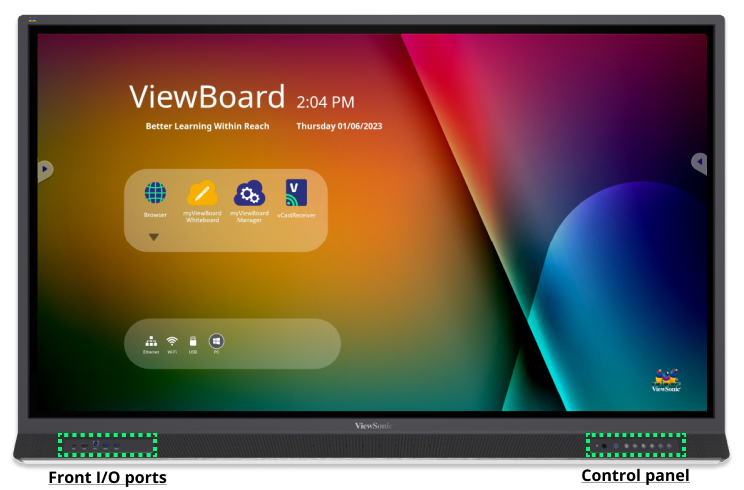
ViewSonic built much of this hardware for corporate meeting rooms, so it leans toward collaboration and casting. It covers core teaching tasks well, though some education-specific touches feel lighter than on purpose-built classroom panels. Still, for a school standardizing on one vendor at a sharp price, it is a sensible interactive flat panel display.
Best for: Budget-conscious schools or districts already running ViewSonic gear elsewhere.
Other interactive flat panel brands worth knowing
The classroom market is crowded, and a few more names come up in searches. SMART Board is the long-established pioneer, known for its SMART Notebook software. Boxlight leans into STEM-focused bundles and teacher training. Veld Interactive sells the EDLA-certified Veld Board with a built-in K-12 activity library, and brands like V7 and MaxHub compete mainly on price. If you are shortlisting any of these as a Promethean, SMART, or Veld alternative, it is worth demoing a OneScreen panel alongside them, since it bundles free 24/5 support and a warranty that several rivals charge extra for.
Quick comparison of the top interactive flat panels
| Panel | OS | Display | RAM / Storage | Touch points | Sizes | Standout feature |
| OneScreen Titan | Android 15 | Mini-LED, up to 1200 cd/m² | 16GB / 256GB | 1mm accuracy | 65–86″ | Brightest, neural processor |
| OneScreen T7 | Android 15 | 4K LED | 8GB / 128GB | 1mm, palm rejection | 65–86″ | Best writing + audio |
| OneScreen Core | Android 14 | 4K LED, 400 cd/m² | 8GB / 128GB | 40 points | 65–98″ | Best value, up to 98″ |
| Promethean ActivPanel 9 | Android | 4K UHD | varies | up to 20 | 65–86″ | ActivInspire, teacher PD |
| ViewSonic ViewBoard | Android (EDLA) | 4K | up to 16GB / 128GB | up to 50 | 55–86″ | Sharp price, myViewBoard |
Warranty and support: what school districts should look for
For a district buying dozens or hundreds of panels, support and warranty matter as much as the specs. The brands that serve schools best include a multi-year warranty, live human help, and over-the-air updates without a paid add-on. On this front OneScreen stands out: every product, from Core to Titan, includes 24/5 live GURU support and a warranty at no extra charge.
When a panel hiccups in the middle of third period, a teacher reaches a real person right away instead of opening a ticket and waiting. Many rivals charge for that level of support or bury it in a subscription. For an interactive flat panel display a school leans on daily, that always-there help is worth real money, and it is one less line item for the IT team to renew every year.
The OneScreen GURU advantage
One thing quietly separates OneScreen from the pack: every product, from Core to Titan, includes 24/5 live GURU support at no extra charge. When a panel hiccups in the middle of third period, a teacher reaches a real person right away instead of opening a ticket and waiting. Many rivals charge for that level of support or bury it in a subscription. For an interactive flat panel display a school leans on daily, that always-there help is worth real money.

How to choose the right interactive flat panel for your school
A short framework for choosing the right interactive flat panel display:
- Size it right (75″ vs 86″). A 65″ panel suits 15–20 students; 75″ is the sweet spot for most standard classrooms; 86″ and up belong in large rooms and lecture halls. The back row should sit no farther than about six times the screen height away, so when you’re torn between 75″ and 86″, size up for deep rooms.
- Mind recurring costs and ask about district pricing. Some brands charge yearly software subscriptions. Factor those in, plus $200–$500 per unit for installation, and ask vendors about volume licensing and district pricing if you’re outfitting many rooms at once.
- Plan for scale. If you’re digitizing dozens or 200+ classrooms, look for centralized management (OneScreen includes it) so IT can push settings, apps, security policies, and updates to every interactive flat panel from one dashboard instead of touching each board by hand.
- Check the writing feel. If teachers write a lot, prioritize palm rejection and 1mm touch accuracy.
- Confirm EDLA certification and Google support. EDLA guarantees licensed Android with Google Play, ongoing security updates, and native Google Workspace for Education, so the panel works best with the Google ecosystem many schools already run.
- Check casting. For bring-your-own-device classrooms, make sure the panel mirrors student and teacher devices over AirPlay, Miracast, and Google Cast.
- Look for funding. In the U.S., E-Rate and Title IV-A grants can offset per-unit costs.
When a classroom isn’t the whole story: video walls for bigger spaces
An interactive flat panel display is ideal at the front of a classroom, but it tops out around 98 inches. For a gym, a lobby, an auditorium, or the front of the building, you need something larger, and that is where LED video walls come in. They have moved into schools fast: districts now use them for gym scoreboards, hallway and front-office communication displays, and even outdoor stadium boards. Direct-view LED walls run for roughly 100,000 hours, plug in much like a standard HDMI display, and are easier to maintain than the old tiled setups.
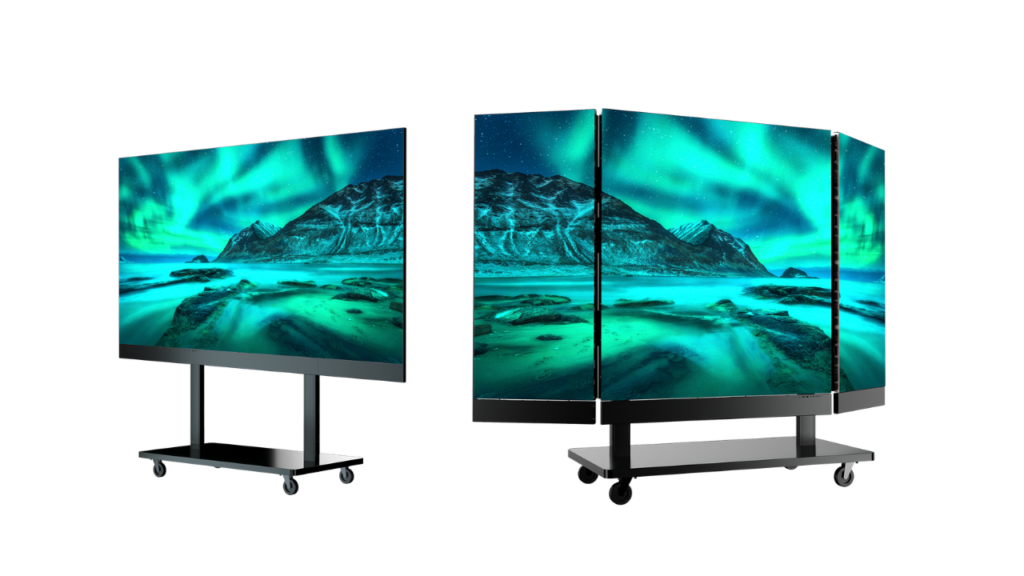
OneScreen LED Video Walls cover the whole range. There are COB all-in-one walls (up to 217 inches, Android or Windows, with optional touch), modular LED walls with fine pixel pitches down to 0.94mm, a foldable plug-and-play wall for traveling room to room, stackable LED digital posters, and fully custom builds for any space. Every wall ships with a one-year subscription to OneScreen Cloud Studio, the cloud signage software that handles content, scheduling, analytics, and 200+ ready-made templates, plus a 3-year warranty, expert installation, and the same 24/5 GURU support that backs the interactive flat panel line. Cumberland County Schools nicknamed theirs “Dream Walls” and noted the quality came at nearly half the cost of the alternatives they weighed.
On the competitor side, Samsung, LG, and Planar are the established direct-view LED names in education. Samsung is known for brightness and reliability, LG for premium Micro LED through its MAGNIT line, and Planar for fine-pitch accuracy with strong U.S. service and warranty support. All three are solid choices that tend to sit at the premium end, so gather quotes and compare total cost, including content software, before you commit.
Frequently asked questions
What is the difference between an interactive flat panel and a smart board?
“Smart board” is often used as a generic term, but technically it can mean an older projector-and-whiteboard setup. An interactive flat panel display is a self-contained 4K touchscreen with its own computer and software, so it needs no projector or separate PC.
How much does a classroom interactive flat panel display cost?
Most quality panels run between roughly $2,800 and $7,000 depending on size (55″–86″), brand, and features. Premium Mini-LED units like the OneScreen Titan sit at the higher end. Always request an education quote, since most vendors — OneScreen included — offer volume licensing and district pricing that is not shown online.
How long do interactive flat panels last?
The LED panels are typically rated for around 50,000 hours, about 20 years in a normal school. Software and security updates, not the screen, usually decide real lifespan.
Which interactive flat panel is best for a tight budget?
The OneScreen Touchscreen Core is the strongest value pick here. It keeps 4K, EDLA certification, and the full OneScreen software suite while cutting the price, and it scales up to 98 inches for big rooms.
Do interactive flat panels work with Google and Microsoft tools?
Yes. EDLA-certified panels like the OneScreen lineup include Google Play, Google Drive, and Workspace for Education, and support single sign-on for both Google and Microsoft accounts.
What is the difference between an interactive flat panel and a video wall?
An interactive flat panel display is a single touchscreen, typically 65–98 inches, built for hands-on teaching at the front of a classroom. A video wall is a larger, usually non-touch LED display made for big spaces like gyms, lobbies, and auditoriums, where sheer size and visibility matter more than touch. Many schools run both: an interactive flat panel in each classroom and a video wall in shared spaces.
Which interactive flat panel brands offer the best warranty and support for school districts?
Look for brands that bundle a multi-year warranty and live support at no extra cost. OneScreen leads here, with a warranty and 24/5 live GURU support included on every panel, while Promethean, ViewSonic, and SMART offer solid warranties but often price premium support or software separately. For a district, “included and unlimited” beats “available as an upgrade.”
What are good alternatives to Promethean for K-12 schools?
The most popular Promethean alternatives for K-12 are OneScreen (Titan, T7, and Core), ViewSonic ViewBoard, and SMART Board. If your priority is a user-friendly, fully built-in interactive flat panel with no attached PC and free 24/5 support, the OneScreen T7 and Core are the closest match; ViewSonic wins on aggressive pricing.
Which interactive flat panel works best with the Google ecosystem?
An EDLA-certified interactive flat panel works best with Google. EDLA certification provides licensed Android with the Google Play Store, Google Drive, and Workspace for Education built in, plus Google single sign-on. Every OneScreen touchscreen is EDLA-certified, as are ViewSonic’s ViewBoard IFP51 and Promethean’s ActivPanel LE.
What size interactive flat panel is best for a classroom, 75″ or 86″?
For most standard classrooms, 75″ is the sweet spot. Choose 86″ when the back row sits more than about 20 feet from the screen or the room holds 30-plus students; 65″ is fine for small rooms of 15–20. A simple rule: the farthest viewer should sit no more than six times the screen height away.
Can I use a regular flat-screen TV as a classroom display instead of an interactive flat panel?
You can, but it is a step down for teaching. A standard flat-screen TV has no touch, no interactive whiteboard, no education apps, and no EDLA-certified Google access, and most are dimmer than a classroom panel. An interactive flat panel display is purpose-built for the classroom: teachers write on it, students interact with it, and it runs lessons on its own. A TV only makes sense as a passive, view-only screen where no one needs to touch it.
What is the difference between an interactive flat panel and a video wall?
An interactive flat panel display is a single touchscreen, typically 65–98 inches, built for hands-on teaching at the front of a classroom. A video wall is a larger, usually non-touch LED display made for big spaces like gyms, lobbies, and auditoriums, where sheer size and visibility matter more than touch. Many schools run both: an interactive flat panel in each classroom and a video wall in shared spaces.
What is the best display for school hallways and communication?
For hallways, entrances, cafeterias, and gyms, an LED video wall or LED digital poster works better than a single touchscreen. These school communication displays double as digital bulletin boards, showing announcements, schedules, live events, and safety alerts, and can be managed centrally with digital signage software such as OneScreen Cloud Studio. In the classroom, a touch interactive flat panel is still the right tool.
The bottom line
There is no single best interactive flat panel for every school, but there is a best one for your rooms, budget, and teachers. Want the brightest, most capable display with room to grow? The OneScreen Touchscreen Titan is the one to beat. Want the smart middle ground? The T7. Equipping a whole building? The Core stretches your dollars without cutting what matters. Promethean and ViewSonic remain solid, education-proven options worth a demo. And when a single interactive flat panel isn’t big enough, OneScreen’s LED Video Walls carry the same support and software up to your gym, lobby, or auditorium.
Whatever you pick, get hands on it before you commit. Bring in a teacher, write on the board, open a lesson, and see how it feels. The right interactive flat panel display should disappear into the lesson, and the best way to know is to try.
