








Quick Answer: For most schools in 2026, the best interactive screen is the OneScreen Touchscreen Titan. It’s a Mini-LED panel on Android 15, EDLA-certified, with free 24/5 GURU support and a 3-year warranty.
Tight budget? The Touchscreen Core. Mid-size room? The T7. Big spaces like lobbies, gyms, and lecture halls? OneScreen LED Video Walls. Every OneScreen interactive touchscreen ships with built-in teaching apps and unlimited support at no extra cost.
Watch a teacher fight a dying projector five minutes before the bell, and you get why schools are done with them. Too many parts. Too many things that break. A modern interactive screen puts the computer, speakers, whiteboard, and display in one panel, so there’s less to fix across a building full of rooms.
Here’s what the term means, what to check, and the four OneScreen options built for classrooms.
Table of Contents
What Is an Interactive Screen?
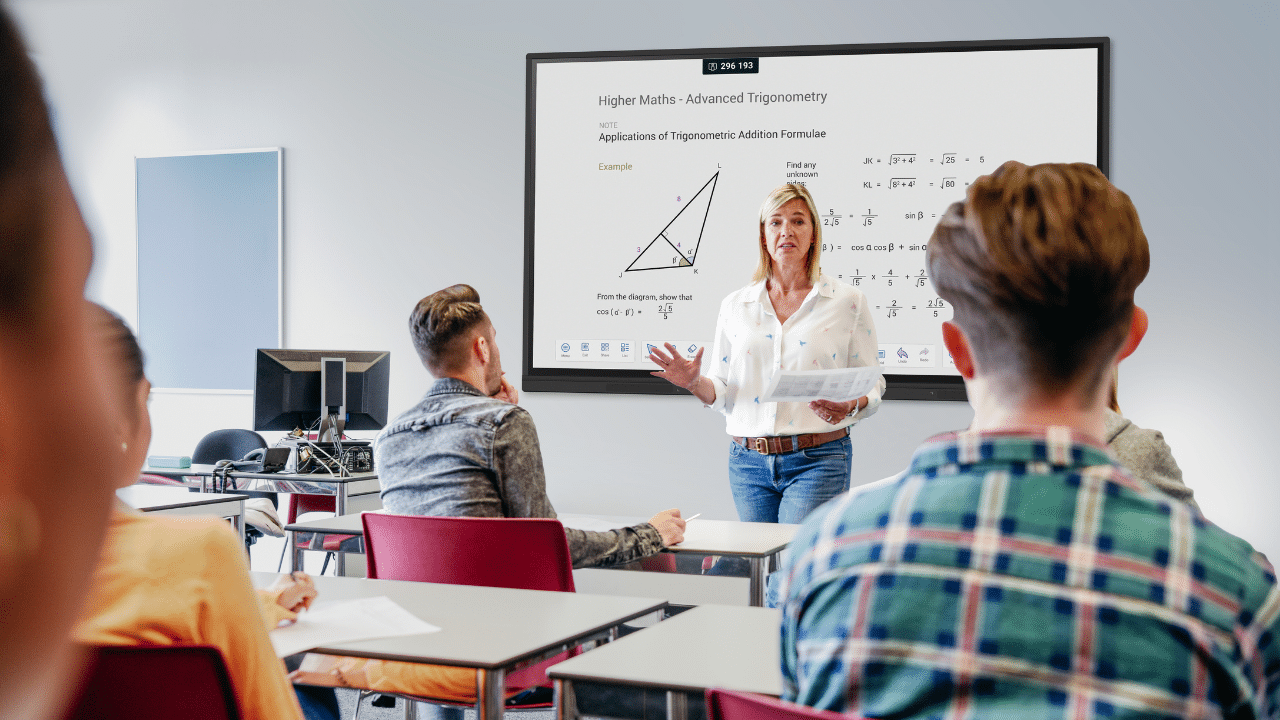
An interactive screen is a big touch display that does the job of a projector and a whiteboard at once. Teachers write on it by hand or pen, open apps, cast from a laptop or phone, and pull up a lesson without a separate PC wired in.
Most classroom models are interactive touchscreens running Android. They come with their own operating system, storage, and software for whiteboarding, screen sharing, and quick assessments. You’ll also see the term interactive flat panel, or IFPD. Same thing. One interactive screen that runs the whole lesson.
What to Check Before You Buy an Interactive Screen
Five things decide whether teachers use the interactive screen or ignore it.
Start with touch. Twenty touch points is the floor. Forty lets a group work at the board together. Look for roughly 1mm accuracy so handwriting stays readable.
The operating system sets the daily experience. Android boots fast and updates without a fuss. EDLA certification matters most because it gives the classroom licensed access to Google Play, Drive, and Workspace for Education. Single sign-on and Classroom just work.
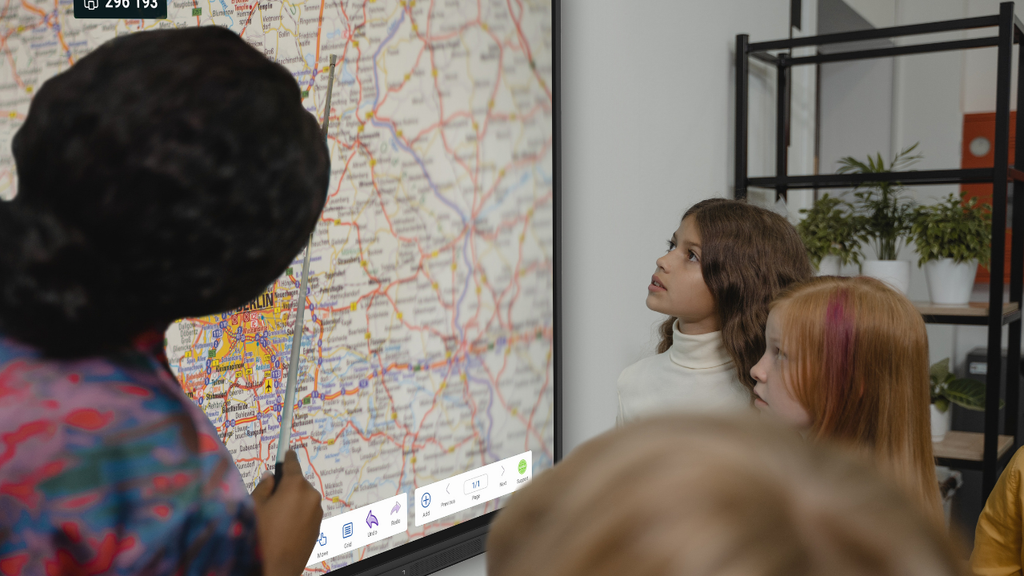
Brightness is easy to skip over until the afternoon sun hits the room. Around 400 nits is fine in controlled light. A Mini-LED panel near 1200 nits stays sharp with the blinds open.
Then there’s software, where the budget earns its keep. An interactive screen that ships with lesson-planning, note-taking, and assessment tools beats one that needs a tethered laptop. Check that it talks to Google Classroom, Teams, Zoom, and your LMS out of the box.
Last, support and warranty. A multi-year commercial warranty and live help matter more than any line on a spec sheet. Plenty of brands charge extra for both. OneScreen doesn’t.
OneScreen’s Interactive Screens for Education
OneScreen builds its interactive touchscreens around how schools run, and it shows in the hardware, the apps, and the support. Here’s the lineup.
OneScreen Touchscreen Core
The Touchscreen Core is the value pick, and it punches above its price. It runs Android 14, carries EDLA certification, and signs you in to Google, Microsoft, and cloud drives through one OneScreen Account.
The specs are solid: 4K UHD, up to 40 touch points at 1mm accuracy, an octa-core chip, 8GB RAM, 128GB storage, Wi-Fi 6E, and anti-glare 9H glass, in sizes from 65″ to 98″.
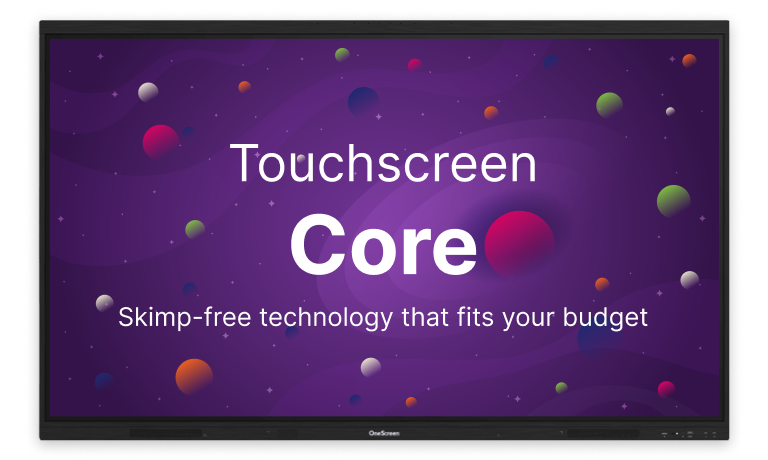
The real draw is the app suite included. Lessn plans lessons. Scrybe takes notes. QuizWiz builds assessments. SuprNotes keeps class notes tidy. For a district fitting out every room on a budget, the Core gives you a real interactive screen without flagship money.
OneScreen Touchscreen T7
The Touchscreen T7 is the middle option. It has the same octa-core platform, 8GB RAM, and 128GB storage as the Core, but runs Android 15 with a few upgrades teachers actually notice.
The audio is the best in the range: dual 20W speakers and a 25W subwoofer. Touch is pressure-sensitive with palm rejection. One-tap NFC login skips the password between classes.
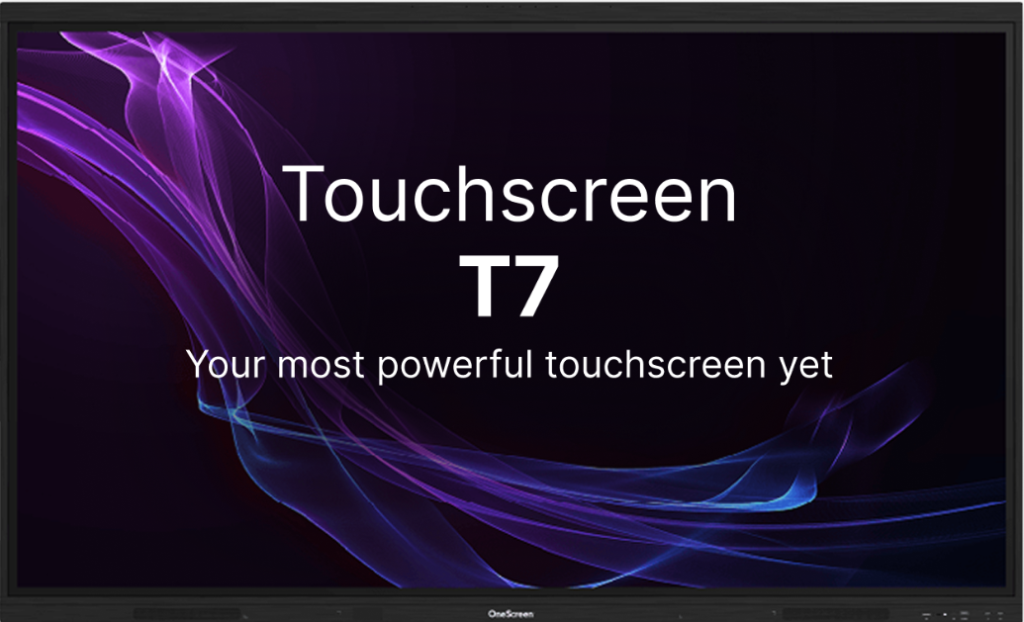
Turn a phone into a document camera. Save work as a QR code. Tap the magnetic pen to annotate. If you want Android 15 and better sound but don’t need Mini-LED, this interactive touchscreen is the one.
It also takes the Hubware add-on, an i7 OPS PC, and the SnapCam 2 camera, if you want Windows and video calls on Blackboard, Canvas, or Moodle.
OneScreen Touchscreen Titan
The Touchscreen Titan is the flagship and the first Mini-LED education smartboard on the market, running Android 15. The Mini-LED panel reaches 1200 nits with deeper blacks and stronger contrast, which counts because most students learn by seeing. It also uses up to 30% less power than the T7 or Core and lasts around 50,000 hours.
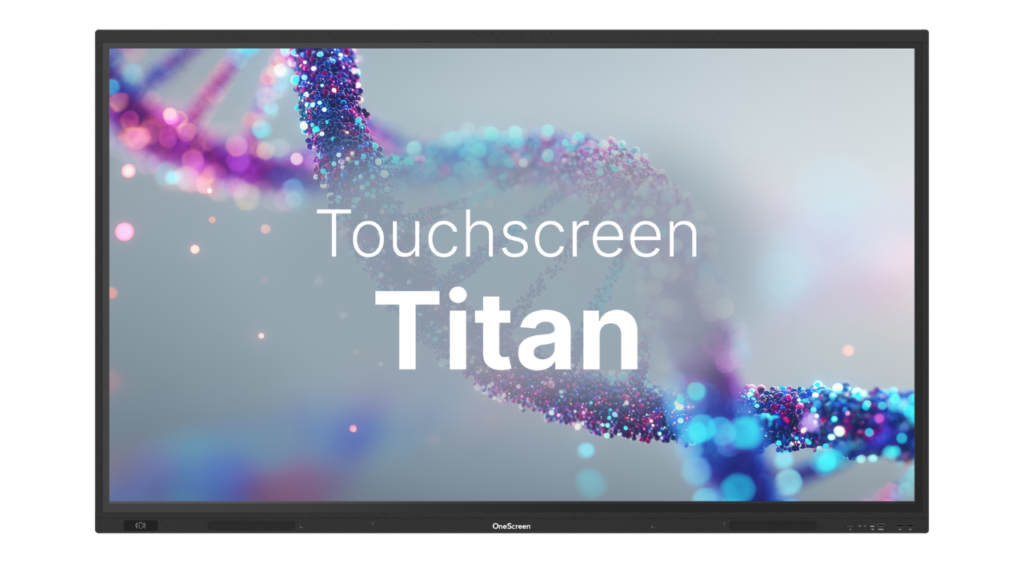
The internals match. A 6 TOPS neural processor, octa-core CPU, 256GB storage, 16GB RAM, pressure-sensitive IR touch, and an 8-array mic, in 65″, 75″, and 86″. Security is built in with EDLA, one-tap NFC login, Google single sign-on, and AMS directory.
For a lecture hall, a science lab, or any room where the sun pours in, the Titan is the interactive screen to beat.
OneScreen LED Video Walls
Some spaces are too big for one panel. OneScreen LED Video Walls fill campus lobbies, gyms, command centers, and lecture halls. The range includes COB all-in-one walls (136″, 163″, and 217″, with optional infrared multi-touch), modular walls with pixel pitches down to 0.94mm, foldable portable walls in 110″ and 138″, LED digital posters, and custom builds for indoors or out.
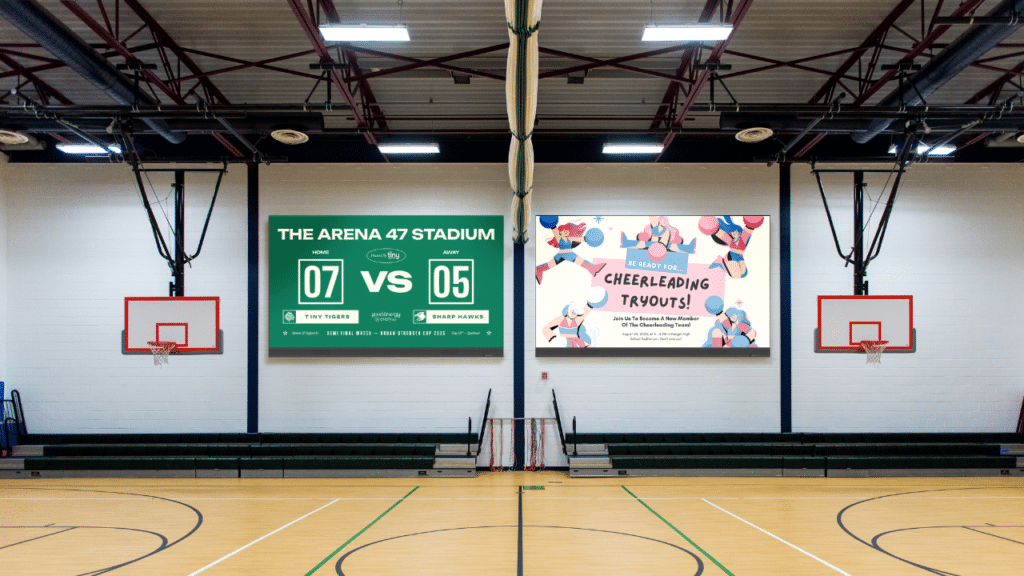
Every wall comes with a 3-year warranty, expert install, and a free year of Cloud Studio, the signage software that runs content, scheduling, and analytics off 200+ templates.
Cumberland County Schools built their command center around OneScreen “Dream Walls,” and their CTO said the quality landed at nearly half the cost of what else they looked at. One vendor across classrooms and big spaces stretches your interactive screen setup past a single room.
OneScreen vs Competitors
Most classroom brands (SMART, Promethean, ViewSonic, Vibe) sit in the same hardware band. The difference is what’s bundled and what costs extra.
The table reflects OneScreen’s education positioning; exact terms shift by model and reseller, so get a quote before you commit.
| Feature | OneScreen | SMART Board | Promethean | ViewSonic |
| Operating system | Android 15 (T7, Titan) / 14 (Core) | Android | Android | Android |
| Mini-LED display option | Yes (Titan, industry-first) | No | No | No |
| EDLA + Google Workspace for Education | Yes | Model-dependent | Yes | Yes |
| Built-in AI teaching apps, no extra cost | Yes (Lessn, Scrybe, QuizWiz, SuprNotes) | SMART Notebook (advanced tiers paid) | ActivInspire | myViewBoard |
| Live technical support | Free 24/5 GURU, unlimited | Paid/tiered | Paid/tiered | Standard |
| Commercial warranty | 3-year | Varies | Varies | Varies |
| LED video walls from same vendor | Yes | No | No | Limited |
| Touch points | Up to 40 | 20–40 | Up to 40 | 20–40 |
The pattern is easy to spot. Rivals often park advanced software or live support behind a paid tier. OneScreen puts both in the base price. Weighing a SMART, Promethean, or ViewSonic alternative?
Demo an interactive screen from OneScreen next to it, and total the cost with support included.
OneScreen GURU: Support That’s Actually Free
Hardware is half the decision. The other half is what happens at 8:55 a.m., when a teacher hits a snag and a class is walking in.
OneScreen GURU is live human support with every OneScreen interactive screen. No subscription. No per-incident fee. Call a real technician 24/5 for setup, training, a fix, or an app walkthrough.

For an IT team running dozens of rooms, that’s often the deciding factor. An interactive screen nobody can fix is one nobody uses. Some competitors bill support as an add-on. OneScreen doesn’t.
FAQ: Interactive Screens for Schools
What is the best interactive screen for classrooms in 2026?
For most schools, the OneScreen Touchscreen Titan, for its Mini-LED display, Android 15, EDLA certification, free 24/5 GURU support, and 3-year warranty. Budget rooms should look at the Core, and mid-size classrooms at the T7.
What size interactive touch screen do I need?
A 65″ screen suits small classrooms, 75″ standard rooms, and 86″ large classrooms and lecture halls. For lobbies, gyms, and auditoriums, an LED video wall fits better than one panel.
Do interactive touchscreens work with Google Classroom?
Yes. EDLA-certified panels like the Core, T7, and Titan connect to Google Workspace for Education, including Classroom, Drive, and single sign-on, plus Microsoft Teams and Zoom.
How long does an interactive screen last?
A good panel lasts several years of daily use. The Mini-LED Titan is rated for 50,000 hours, and OneScreen backs its displays with a 3-year warranty and unlimited GURU support.
The Bottom Line
Buy for the room, not the hype. The Titan wins bright rooms and lecture halls. The Core covers budget classrooms and keeps the teaching apps. The T7 sits in the middle. LED Video Walls take the spaces one panel can’t.
The thread through it all is what rivals charge extra for: free 24/5 GURU support and built-in software on every interactive screen. Put one next to a SMART, Promethean, or ViewSonic panel, add up the real cost with support included, and the choice usually makes itself.
