







For range on an iPhone, Google Translate is the one to install. It now handles live speech translation on iOS and covers more than 240 languages. If you’d rather keep your conversations on the device instead of sending them to a server, Apple Translate is the better fit. Android leans toward Google Translate as well, partly because it’s wired deeper into the operating system there and its live translation runs on nearly any Bluetooth headset. What none of them do well is translate for a whole room at once, and that’s the gap OneScreen Scrybe fills.
Which one actually fits you depends on three things: what you’re translating, who you’re translating for, and which phone is already in your pocket.
Table of Contents
Best translation app for iPhone vs Android at a glance
| App | Works on | Languages | Live voice translation | Best for |
| Google Translate | iPhone and Android | 240+ | Yes, on both platforms | All-round range, travel |
| Apple Translate | iPhone and iPad | ~19 | Yes (iOS 26 + AirPods, 9 languages) | Quick, private, on-device on iPhone |
| DeepL | iPhone and Android | Fewer, top written quality | Limited (DeepL Voice) | Documents, business writing |
| Microsoft Translator | iPhone and Android | Many | Yes, conversation mode | Teams and Office users |
| Papago | iPhone and Android | East Asian focus | Yes | Korean, Japanese, Chinese |
| OneScreen Scrybe | OneScreen touchscreens, Windows, Android app; captions on any device | 28 | Yes, live captions on every screen | Translating for a whole room |
Which row matters most shifts with your situation, so keep it handy.
What’s the best translation app for iPhone?
For most people it comes down to two apps, Apple Translate and Google Translate, and the deciding factor is privacy versus reach.
Apple Translate, the built-in option
If privacy is your priority, Apple Translate has a head start: it’s already on your phone. It runs many language pairs on-device, so nothing you say gets shipped off to a server. Face to Face mode splits the screen so two people each read their own side, and translation shows up right inside Safari, Messages, and the text you select anywhere in iOS.
Coverage is the catch. Apple supports about 19 languages. The Live Translation feature it added in iOS 26 handles real-time speech inside Phone, FaceTime, and Messages, and through AirPods during in-person chats, which is genuinely handy. But it asks a lot: an iPhone 15 Pro or newer running Apple Intelligence, H2-equipped AirPods, and even then it covers just nine languages. Great if yours are on the list. Useless if they aren’t.
Google Translate on iPhone
When Apple’s list falls short, Google Translate picks up the slack with more than 240 languages, dialects, and varieties. Since March 2026, its headphone-based Live Translate works on iPhone as well, adding real-time speech in over 70 languages, run through Google’s Gemini audio model.
The trade-off flips Apple’s on its head. Google processes your audio on its servers, so it’s the less private choice. Ordering dinner in Lisbon? Fine. Discussing something confidential? Think twice.
DeepL and Papago on iPhone
For written work where the phrasing has to land right, DeepL beats both. Its language list is shorter than Google’s, but the output reads more like a person wrote it, which is why people lean on it for contracts, emails, and anything headed to print. Heading to Korea or Japan? Add Papago. Naver built it, and it handles East Asian honorifics better than the Western apps do.
What’s the best translation app for Android?
Google Translate takes this one, and the argument for it is even stronger here than on iPhone.
Google Translate on Android
It’s baked into the OS. Long-press text in any app and it translates; point the camera at a sign and it translates that; open a foreign web page in Chrome and it handles the whole thing without you launching the app. Live Translate showed up on Android first, in late 2025, and it works with almost any Bluetooth headset instead of a short approved list.
For nearly every day-to-day job on an Android phone, this is the one to reach for, and it costs nothing.
Samsung Galaxy AI and Pixel live translate
Samsung and Pixel phones stack their own tools on top. Galaxy AI’s Interpreter mode and the Pixel’s live translate can carry a spoken conversation or a phone call with nothing extra installed. If you own one of those, the app you need may already be sitting in the system, waiting.
DeepL and Microsoft Translator on Android
DeepL is worth a spot here too if you want cleaner written translation and don’t mind a smaller language list. Microsoft Translator makes sense for anyone who lives in Teams and Office, since it pipes translation straight into both and runs a shared conversation mode where several people join from their own phones.
iPhone vs Android: which handles translation better?
Android wins on built-in translation, mainly because Google Translate runs through the whole operating system. You can translate a message, a street sign, or a website without leaving what you’re doing, and live speech reaches more languages across more headphones.
Apple’s edge is quieter and aimed at a narrower crowd. Because Apple Translate runs on-device, a private conversation never leaves the phone and no server sits in the middle. For anyone handling sensitive information, that beats a longer language list.
Neither platform runs away with it. Android is the more convenient one day to day; iPhone is the more private. And since Google Translate installs on both, the phone you carry matters less than you’d think. The real constraint sits somewhere else entirely. Every app here is built around one person and one screen.
The gap every phone translation app leaves open
Every app so far assumes one person holding one handset. Apple Translate, Google Translate, DeepL, Papago, same assumption across the board. At a hotel desk or a market stall, that’s all you need. Put more than two people in the room and it breaks down.
Think of a parent-teacher night with families across three languages, or an all-hands where half the team dials in remote. One phone can’t caption thirty people at once, each reading their own language. That’s a scale problem, and no language count solves it.
OneScreen Scrybe: translate for a whole room, on iPhone and Android
OneScreen Scrybe is built for the room, not the single sentence. It’s OneScreen’s real-time transcription and translation app, and it starts from a different assumption: people sitting together, speaking more than one language between them.
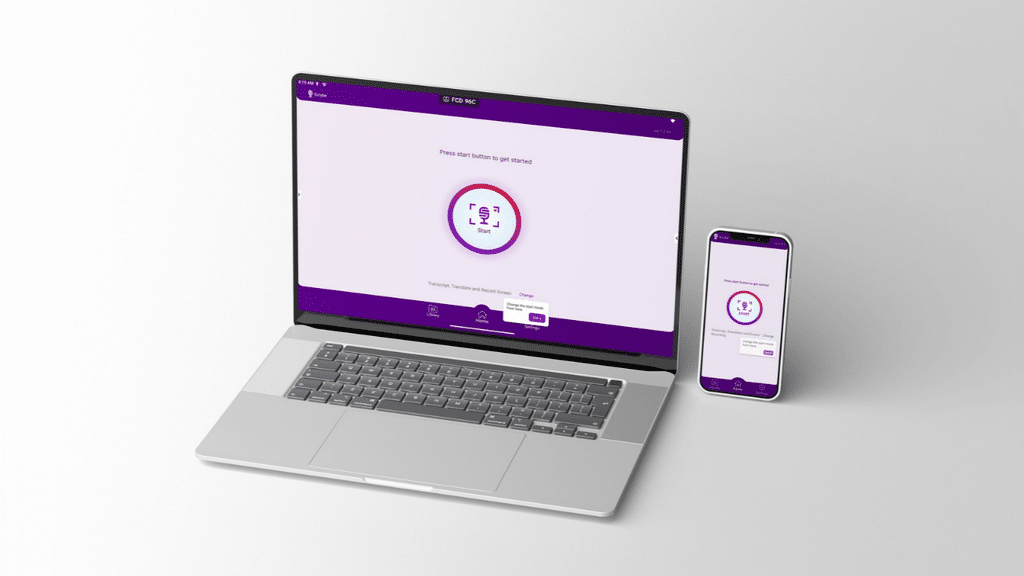
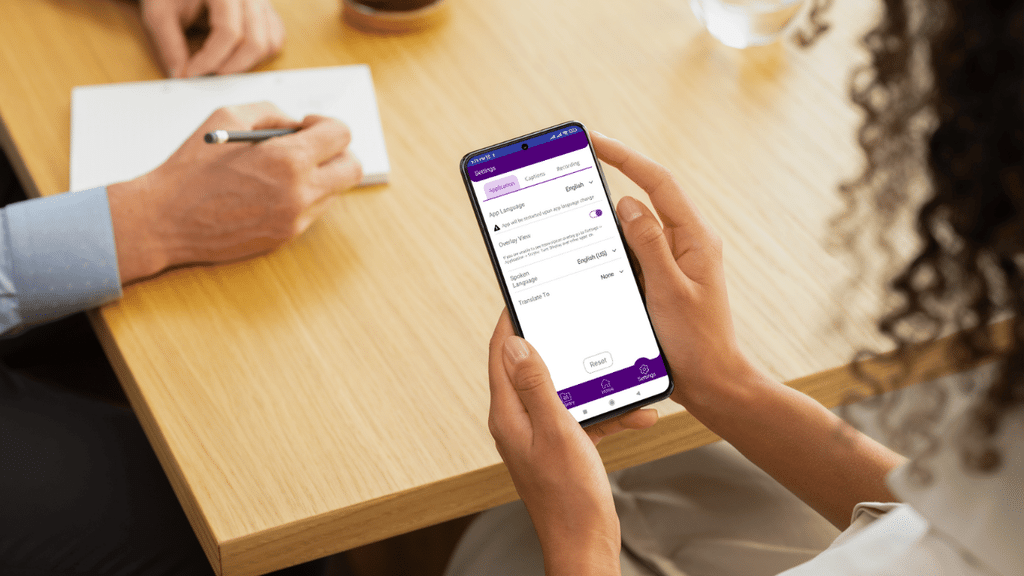
The setup is simple. One device runs Scrybe and listens to whoever’s talking, whether that’s a OneScreen touchscreen up front, a Windows PC, or the free Android app. It transcribes live and pushes captions to two places at once: the shared screen in front of everyone, and each person’s own phone or laptop. Readers each choose their language, so one session can show up as Spanish on one screen and Arabic on the next. That covers 28 languages.
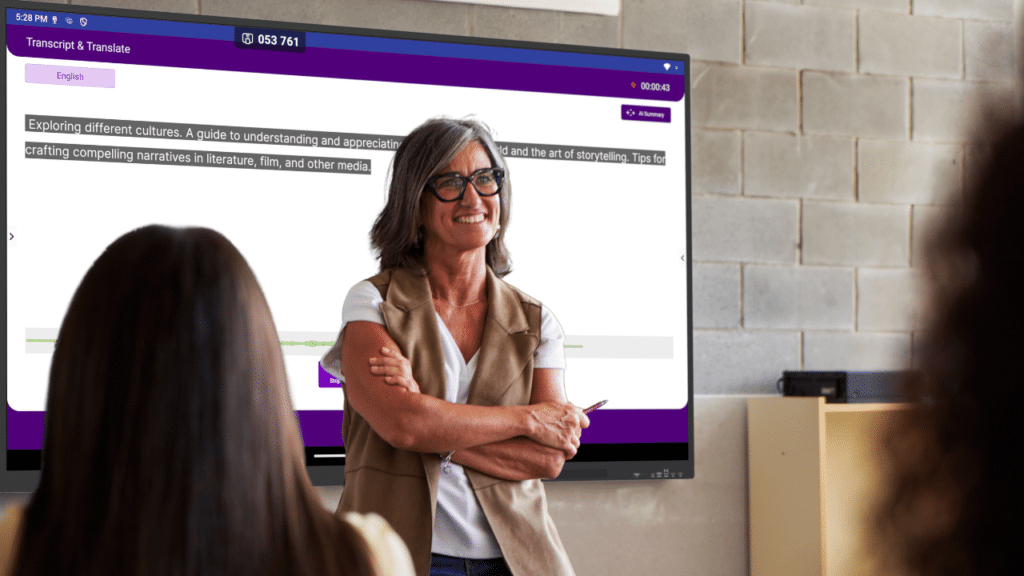
Those personal captions open on any device, so an iPhone follows along exactly as an Android phone does, even though the app itself runs on touchscreens, Windows, and Android. The shared screen serves the whole room; anyone who wants their own language pulls it up on the phone already in their hand. No consumer app on this list was designed for that.
After the session, Scrybe writes an AI-assisted summary you can save as a PDF or send to Google Drive, and it keeps every transcript and translation in its library for retranslating later. It also ties into the rest of OneScreen’s tools: SuprNotes can compress a session into one summary, and QuizWiz can spin it into a quick quiz.
Where OneScreen GURU changes the decision
When most translation apps break, you get a chatbot and a help article. OneScreen ships GURU with every product instead: 24/5 support from a real person. If Scrybe stumbles mid-lesson or mid-meeting, you open GURU and a trained agent can view the screen, take control, and sort it out while the room waits.

None of the phone apps here offer live human support as standard, and for anything that can’t afford to stall, that quietly settles the choice.
How to choose the best translation app for iPhone vs Android
Match the app to the job, not to the phone.
- Traveling and want maximum language coverage: Google Translate, on either phone.
- On an iPhone with privacy as the priority: the built-in Apple Translate.
- Translating documents or business writing: DeepL, for the cleaner output.
- Heading to Korea, Japan, or China: add Papago.
- Working mostly in Teams and Office: Microsoft Translator.
- Translating for a whole room, in a meeting, classroom, or front desk:OneScreen Scrybe.
See Scrybe in action
No phone app here was built to translate a live talk or presentation for a whole room. See how OneScreen Scrybe puts translated captions on every screen at once, and book a short demo to watch it run in your own space.
Frequently asked questions
What is the best translation app for iPhone?
Google Translate, if language range is what you’re after. It now runs live speech translation on iOS and covers 240+ languages. Care more about privacy? Apple Translate is the better call, since it processes many languages on-device.
And for translating a group in one room, OneScreen Scrybe fits better than either, because it shows live captions on every device at once.
What is the best translation app for Android?
Google Translate, and it’s an easy call on Android. It’s built into the OS, translates text, signs, and websites without opening the app, and runs live speech translation across almost any Bluetooth headset.
Samsung and Pixel owners get solid interpreter features built in too, and DeepL is worth adding when you want higher written quality.
Is Apple Translate better than Google Translate?
Depends what you’re optimizing for. Apple wins on privacy: it runs many language pairs on-device, so nothing leaves your phone, but it tops out around 19 languages. Google wins on reach, with 240+ languages and live translation on both iPhone and Android, though it processes audio on its servers. Sensitive conversations, go Apple. Everything else, Google.
What’s the best free translation app for iPhone and Android?
Google Translate, on both. It’s free, cross-platform, and includes text, camera, voice, and live translation at no charge. Apple Translate is free too, but iPhone and iPad only.
OneScreen Scrybe’s Android app is also a free download, though it’s aimed at live sessions rather than solo use.
Which translation app has the most languages?
Google Translate, at more than 240 languages, dialects, and varieties. Microsoft Translator covers a wide range as well and throws in a shared conversation mode. Apple Translate is much smaller at around 19, and OneScreen Scrybe sits at 28, built for live multi-person translation rather than raw count.
Can one translation app work on both iPhone and Android?
Yes. Google Translate, DeepL, Microsoft Translator, and Papago all run on both, so you can carry the same app across phones. Apple Translate is the exception, iPhone and iPad only. OneScreen Scrybe runs on OneScreen touchscreens, Windows, and Android, and its live captions reach any device in a session, iPhone included.
What’s the best translation app for meetings or classrooms?
OneScreen Scrybe, because it translates for everyone at once instead of one person on a phone. One device captions the room, those captions land on a shared screen and on each person’s own device in their chosen language, and Scrybe hands you a summary when it’s done. Phone apps like Google Translate are fine one-to-one but can’t caption a full room live.
Does the iPhone have a built-in translation app?
Yes, it’s Apple Translate, installed by default on recent models. It handles text and voice, has a Face to Face conversation mode, and processes many languages on-device for privacy. iOS 26 added Live Translation in Phone, FaceTime, and Messages, though that needs a recent iPhone, Apple Intelligence, and supported AirPods.
