


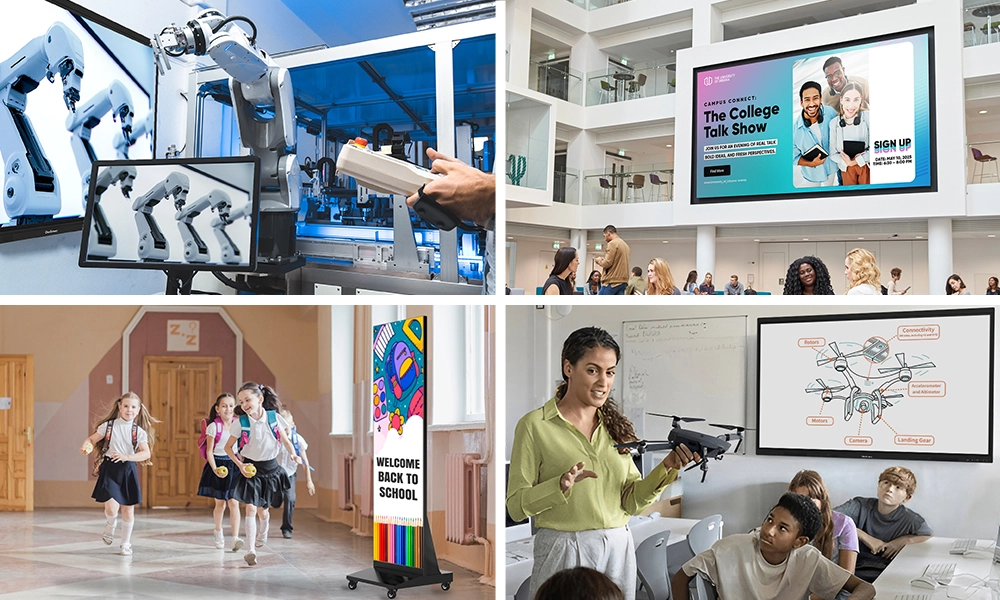






Classrooms have changed more in the past decade than in the previous fifty years. Chalkboards gave way to projectors, projectors made room for digital displays, and today the interactive touchscreen sits at the center of how lessons get delivered. From primary schools to university lecture halls, these panels are reshaping the way teachers teach and students learn.
For schools planning their next technology purchase, the choice of interactive touchscreen carries more weight than spec sheets suggest. The right panel becomes the most-used tool in the room. The wrong one ends up as wall art. This guide walks through the top interactive screens built for education today, and how OneScreen’s Touchscreen Titan, T7, and Core, alongside GURU and ChalkFree, fit in.
Table of Contents
Why Projectors Keep Losing Ground
The projector setup looks reasonable on paper. Then the realities show up. New bulbs every 12 to 18 months. Recalibration after every bump. A separate sound system. Half-darkened rooms that drag on attention spans all year.
Over three years, a projector classroom often takes more effort to maintain than an interactive touchscreen of equivalent size. One interactive touchscreen on the wall: no consumables, no calibration tickets, no dimming.

BESA’s UK classroom research clocks the bump in student participation at roughly 16% when a touch-enabled interactive touchscreen replaces traditional projection. The effect lands hardest in primary classrooms.
What Actually Matters When You’re Choosing One
Touch capacity first. A panel handling five kids at the board at once needs 20 touch points minimum and under 10ms latency. Drop below that and you get ghost strokes and missed inputs, plus a teacher who quietly stops using the interactive touchscreen by week three. The Titan handles 40 points, Core handles 40, the T7 handles 20. The ViewBoard IFP52 lands at 33, the ActivPanel 9 at 20, the BenQ Board Pro at 40.
Pre-loaded software comes second. If a teacher has to connect a laptop, find a dongle, and launch a separate app every morning, adoption craters fast. The interactive touchscreen needs a built-in OS with whiteboarding, annotation, and wireless casting ready at power-on. OneScreen ships the complete suite with the panel. Promethean’s full ClassFlow capability and SMART’s deeper Learning Suite tools arrive through separate modules.
Eye safety reads like marketing copy until you ask a teacher who’s been in front of a glaring panel for six hours. Certifications worth checking: TÜV Rheinland blue-light, flicker-free backlighting, 7H or 9H anti-glare glass. OneScreen, ViewSonic, and BenQ carry the TÜV cert.
Connectivity rounds it out. Any interactive touchscreen worth installing needs wireless casting from Windows, Chrome OS, iOS, and Android, plus HDMI and USB-C. An OPS slot keeps options open for slot-in Windows machines later.
List of Top Interactive Screens for the Education Sector
OneScreen Touchscreen Titan
The Titan is OneScreen’s flagship for large rooms and lecture halls. 4K UHD, TÜV-certified anti-glare glass, 40-point multi-touch with near-zero latency, available in larger configurations than most classroom panels.
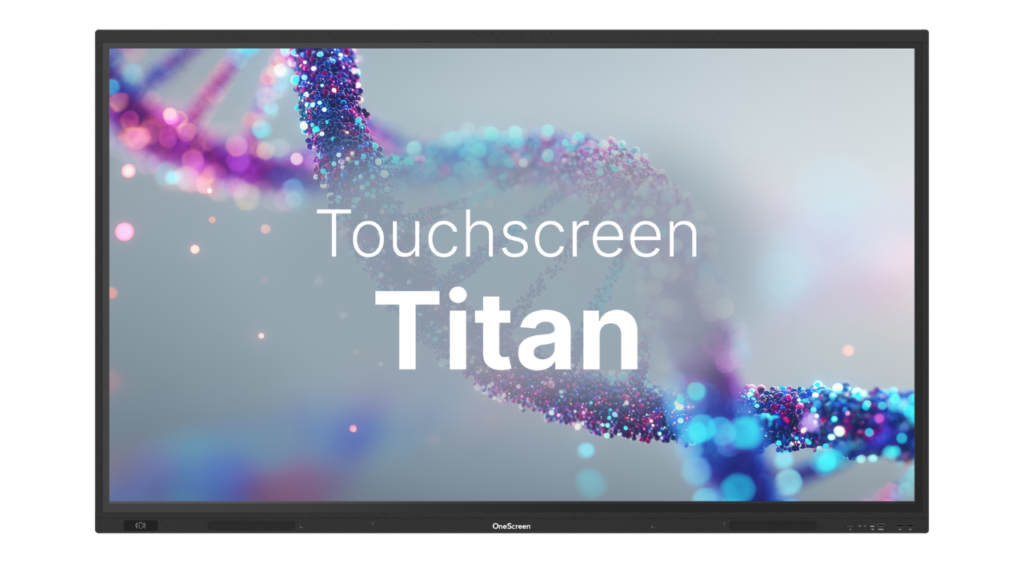
What earns the Titan its place is the pre-loaded software. OneScreen’s whiteboarding suite (infinite canvas, shape recognition, PDF export), annotation tools, wireless screen sharing, and split-screen multitasking all ship with the panel. The built-in Android OS runs full lessons without anyone plugging in a laptop. IT teams get OneScreen’s cloud console for firmware updates, security policies, and remote troubleshooting from one dashboard across the district.
OneScreen Touchscreen T7
The T7 is the everyday classroom interactive touchscreen. Same software stack as the Titan, same TÜV eye-care certification, same Android OS, available at 65, 75, and 86 inches in 4K, with 20-point multi-touch. Teachers get identical wireless casting across Windows, Chrome OS, iOS, and Android, and the whiteboarding app behaves the same.
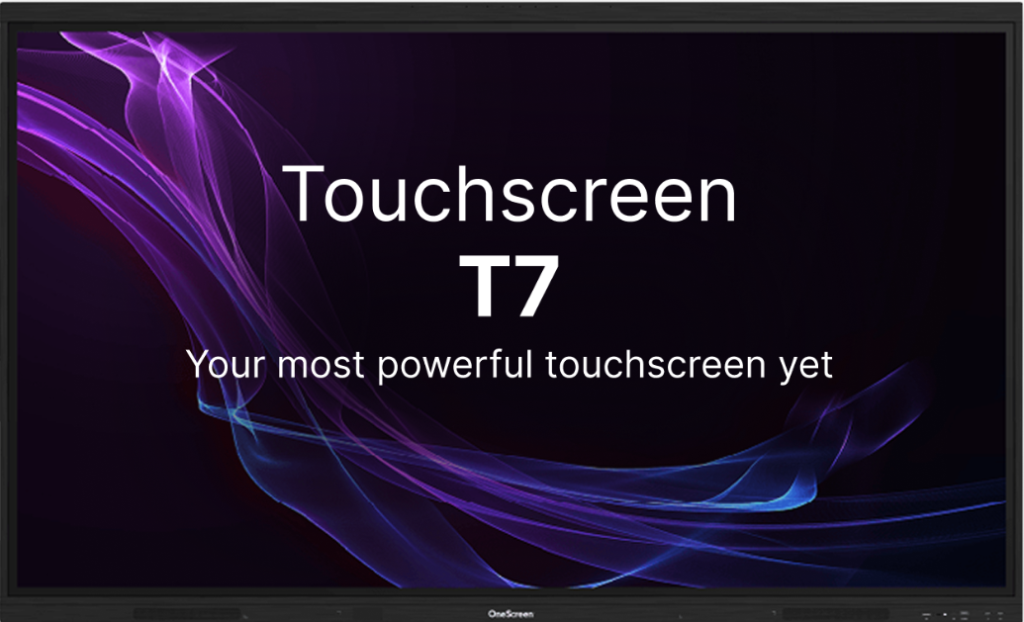
The T7 brings that complete software ecosystem to general classrooms in a panel size that fits daily use. Connectivity covers HDMI, USB-C, and an OPS slot, with power draw lower than most competing 75-inch panels.
OneScreen Touchscreen Core
Touchscreen Core is OneScreen’s tablet-style interactive screen, built on the idea that if a teacher can use their phone, they can use Core on day one. Available at 65, 75, 86, and 98 inches in 4K UHD, with 40-point multi-touch, 1mm touch accuracy, and an octa-core processor backed by 8GB RAM and 128GB storage. Anti-glare and anti-fingerprint glass with 9H surface protection, Wi-Fi 6E, Bluetooth 5.3, two built-in 20W speakers, and a 178° viewing angle round out the hardware.
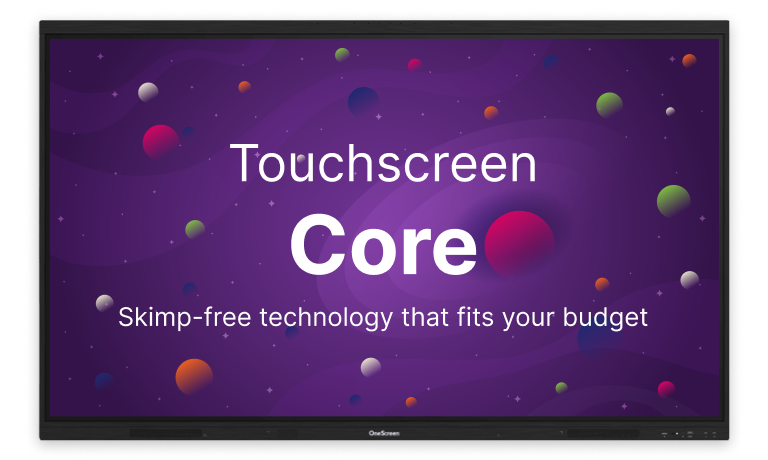
What separates Core from other interactive screens at this size is EDLA certification. Schools get direct access to Google Play services, Google Drive, Google Voice Assistant, and Google Workspace through secure single sign-on via OneScreen Account. Teachers get the AI app suite (Lessn, Scrybe, QuizWiz, SuprNotes), OneScreen Write whiteboard with text recognition and an AI lesson library, plus go-to classroom tools (stopwatch, timer, screen recorder, spotlight, cloud drive, freeze, multitasking) pre-loaded on Android 14.
Optional add-ons extend the system. Hubware H7 brings a Windows-based i7 OPS PC and Full HD webcam for video conferencing. The Wireless Mic Kit covers audio in larger rooms. The OneScreen Sensor Box and Beacon handle NFC login, air-quality monitoring, and real-time notifications.
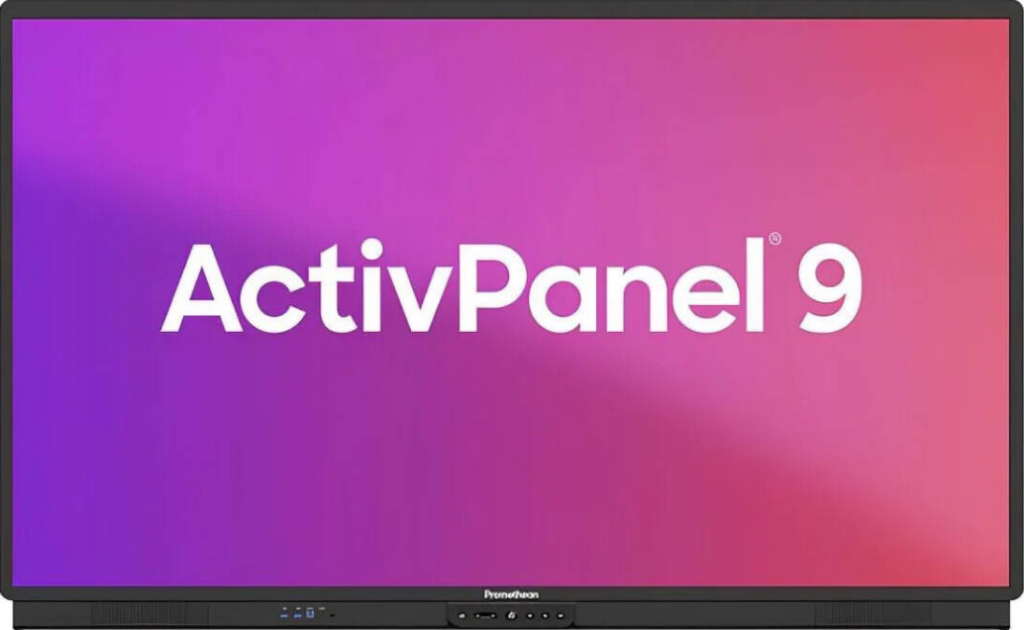
Promethean ActivPanel 9
Promethean’s Vellum surface gets writing feel closer to pen on paper than anything else here. The interactive touchscreen carries 20-point touch in 65 to 86-inch sizes. The catch is software completeness: ActivInspire and ClassFlow’s most useful capabilities arrive through additional modules that need to be sourced and configured separately.
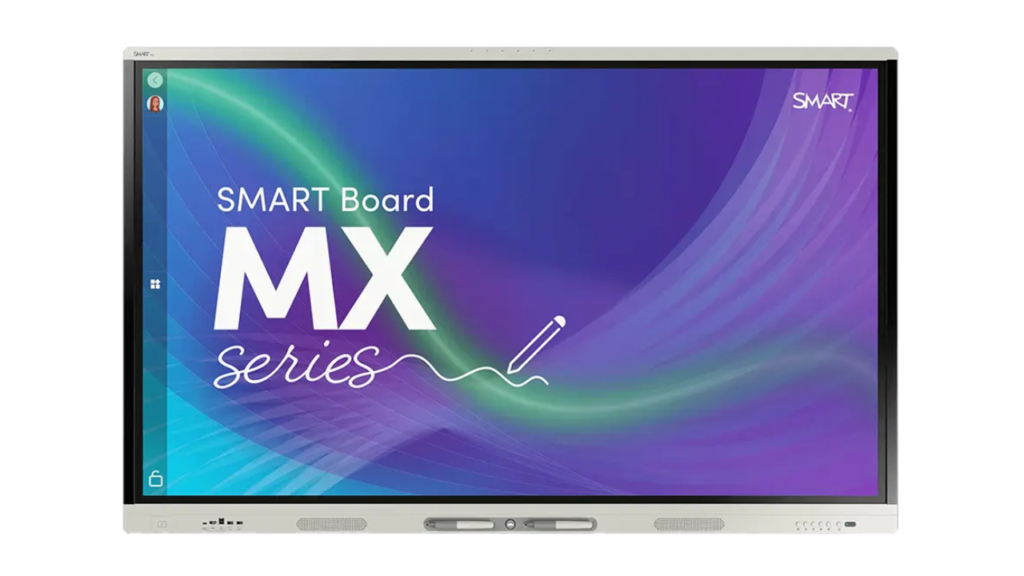
SMART Board MX Series (V5)
SMART has the brand recognition. The MX V5 runs the iQ system with collaborative workspaces, polling, and lesson pacing, and as an interactive touchscreen it performs reliably at 20-point touch and 4K. The friction is ecosystem fit. SMART’s strongest tools assume you’re running SMART software end-to-end, and schools standardized on Google Workspace or Microsoft 365 hit gaps around file conversion.
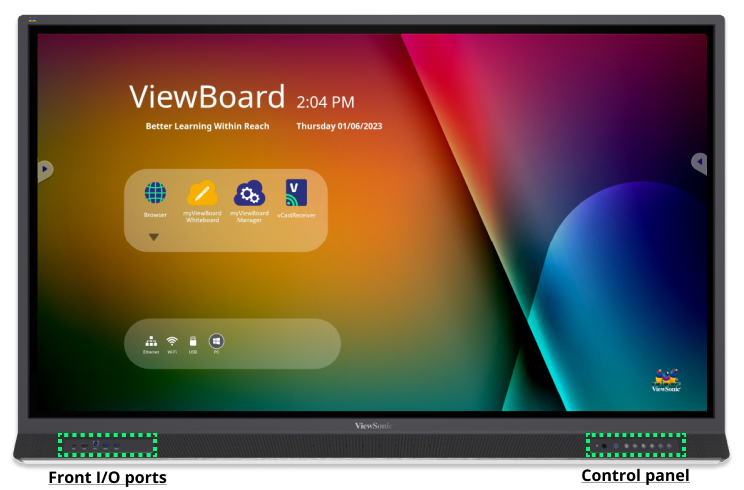
ViewSonic ViewBoard IFP52 Series
ViewSonic plays the budget tier. The IFP52 carries 33-point touch, 4K, and an optional slot-in PC. The bundled myViewBoard software covers whiteboarding and basic casting. Past that, things thin out. Teachers wanting deeper assessment tools will outgrow this interactive touchscreen inside a couple of years.
BenQ Board Pro RP04 Series
BenQ’s DualOS runs Android and Windows on the same interactive touchscreen through an OPS module. The panel supports 40-point multi-touch and germ-resistant coating. Optional air-quality sensors are unique to BenQ but add complexity without changing daily classroom use.
Where OneScreen’s Other Products Shift the Math
Every other vendor on this list sells you a panel and waves goodbye. OneScreen has built two adjacent products that make the Titan, T7, and Core more useful in a real school.
OneScreen GURU
GURU is OneScreen’s live human-support service, and it’s the piece nobody else on this list offers. When a teacher hits a glitch mid-lesson, they pull up GURU on the interactive touchscreen and get a trained support agent on screen in minutes. Not a chatbot. An actual person who can see what’s happening, take screen control if needed, and walk the teacher through the fix without paging IT. For schools with thin IT staffing, that’s the difference between an interactive touchscreen used daily and one gathering dust.
Where OneScreen Wins
OneScreen’s case isn’t that one feature beats every competitor on its strongest dimension. Promethean writes better. SMART has more legacy content. BenQ has unique hardware. OneScreen’s case is that the Titan, T7, and Core, backed by GURU’s support and ChalkFree’s resource library, cover every classroom scenario with one integrated interactive touchscreen platform. One vendor, one cloud console, one support line, one set of training resources.

Frequently Asked Questions
What size interactive screens works best for a typical classroom?
75 inches for rooms seating 25 to 30 students. 86 inches if seating extends past the third row. 65 inches for smaller rooms and early-elementary classrooms.
How long does an interactive touchscreen last in a school?
Panels in this category carry 50,000-hour LED lifespans, which works out to 12 to 15 years of daily classroom use.
Does an interactive touchscreen need the internet to work?
No. The Titan, T7, and Core run whiteboarding, annotation, and local file playback offline. The Internet adds cloud storage and remote management but isn’t needed for daily teaching.
Is screen time on an interactive touchscreen safe for younger students?
TÜV-certified low-blue-light and flicker-free panels are built for prolonged classroom exposure. Every OneScreen interactive touchscreen carries both certifications.
How quickly can teachers start using a new interactive touchscreen?
With OneScreen, day one. The Titan, T7, and Core ship with the full software suite pre-loaded, GURU handles live in-classroom support, and ChalkFree provides short on-demand training videos. Other brands often require a separate onboarding plan before teachers have a usable system.
Final Thoughts
The decision tree for an education interactive touchscreen is shorter than vendors make it sound. Pick a panel size that matches the room. Confirm the included software handles whiteboarding, annotation, and casting out of the box. Check TÜV certification for eye safety. Make sure the management console handles district-scale deployment. Then ask whether the vendor will pick up the phone when a teacher needs help at 9:15 on a Tuesday.
The Titan, T7, Core, GURU, and ChalkFree clear all five.
