


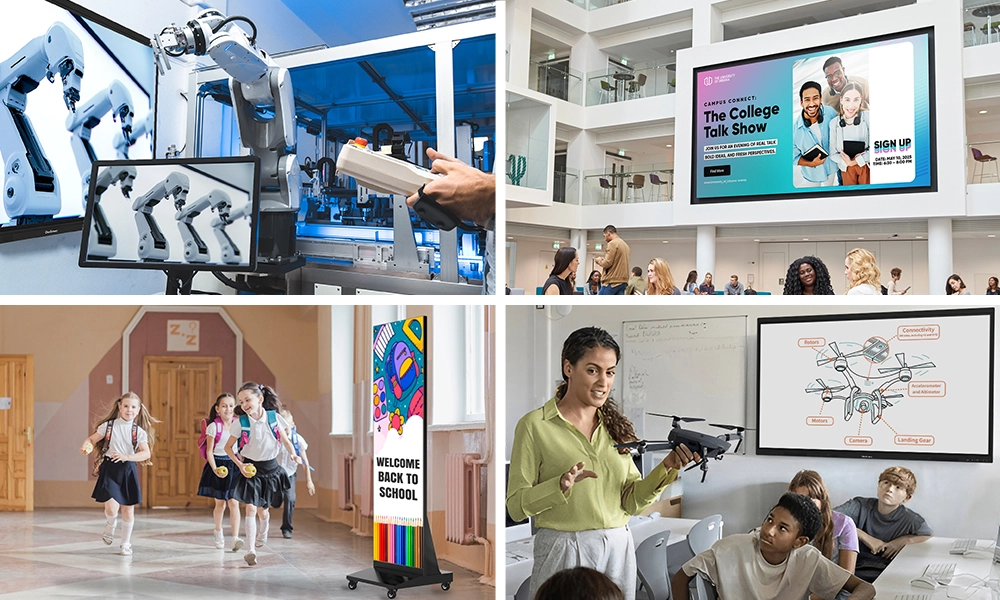






Quick Answer: An interactive smartboard is a large-format touch display that replaces both a projector and a whiteboard. The right classroom model combines 4K resolution, multi-touch input, a built-in operating system, and software teachers can use from day one. OneScreen’s Touchscreen T7, Core, Titan, and LED Video Wall are purpose-built options covering every classroom size and budget in education.
Walk into a classroom that uses an interactive smartboard and you notice the difference in the first five minutes. Students are not just watching — they are marking up diagrams, dragging content across the screen, and building on each other’s ideas in real time. The board becomes the center of the room in a way a projector and static whiteboard never could.
Buying the wrong interactive smartboard, though, is a genuinely expensive mistake. Schools have spent significant budgets on boards that teachers stopped using within the first term because the software was too complicated or the support disappeared after delivery. This guide is here to prevent that.
Whether you are a school principal, IT coordinator, or department head making the case to your governing board, here is everything that matters when choosing an interactive smartboard for classroom use.
Table of Contents
What Is an Interactive Smartboard, and How Does It Work?
An interactive smartboard is a large touchscreen display — typically 65 inches to 98 inches — that runs a built-in operating system or connects to an external computer. Teachers and students write on the screen with their fingers or a stylus, move objects, open apps, and interact with digital content directly on the display surface.
Modern interactive smartboards go well beyond basic touch. Current education-grade models run Android natively, connect to Google Workspace and Microsoft 365, support wireless casting from student devices, and in some cases include AI-powered classroom tools built into the operating system.
Why Are Schools Replacing Projectors with Interactive Smartboards?
Projector bulbs burn out, image quality degrades in natural light, and a flat white wall offers nothing interactive. An interactive smartboard solves all three while adding capabilities the projector model never could.
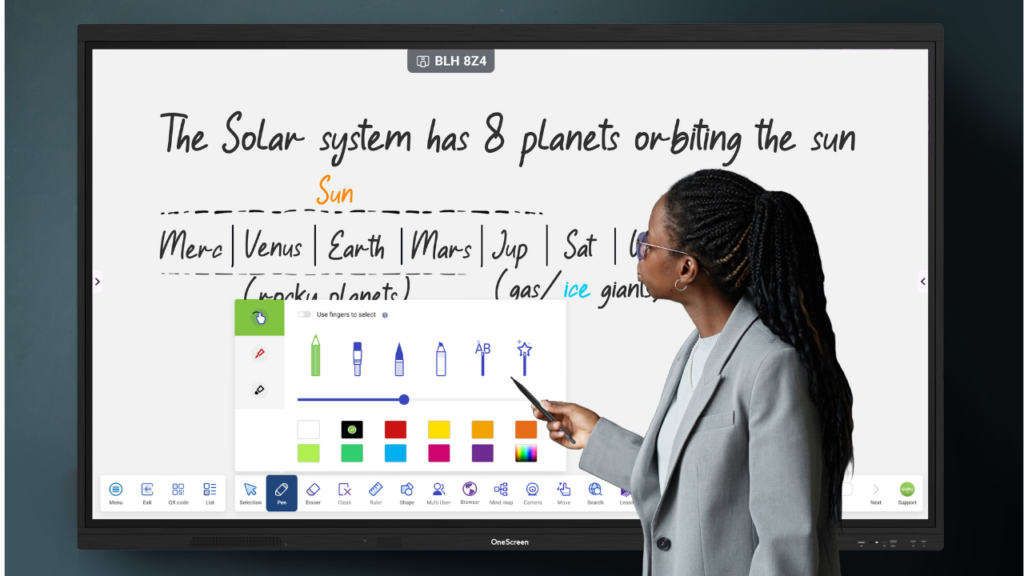
Here is what schools consistently report after switching to interactive smartboards:
Classroom engagement improves noticeably. When students can physically interact with content rather than just watch it, attention spans increase and participation goes up across ability levels.
Teachers save time every week. Lesson content, annotations, and written notes can be saved instantly and shared with absent students. Nothing needs to be rewritten or photographed after class.
Collaboration becomes the default, not the exception. Group tasks now happen directly on the interactive smartboard, with multiple students contributing to the same screen at the same time.
The classroom adapts to the lesson. One screen handles presentations, video, live annotation, quiz tools, and real-time feedback. Switching between formats is a tap, not a rewiring job.
What Should You Look for When Buying an Interactive Smartboard for Classroom Use?
Display Size Matched to Room Dimensions
The most common mistake is buying screen size based on price rather than room fit. For 25 to 30 students, a 75-inch to 86-inch interactive smartboard is the practical minimum. Students at the back need to read text without straining. For large lecture halls, a modular LED video wall is the more appropriate solution.
Resolution
4K UHD is the baseline for any interactive smartboard going into a classroom today. Lower-resolution panels look fine in photos but disappoint in practice when displaying detailed diagrams, fine text, or high-definition video.
Touch Technology and Point Count
Look for at least 20-point multi-touch, though 40-point panels are increasingly standard at the education tier. More touch points mean more students can work on the board simultaneously without input conflicts. Accuracy matters equally — visible lag between where a student touches and where the mark appears makes the board feel unreliable even when it technically is not.
Built-In Operating System
Passive displays that require a connected laptop are a liability in real classrooms. Cables get lost and IT departments have limited availability. An interactive smartboard with a built-in Android OS runs a full lesson independently. When you connect a laptop, the functionality adds on top of the native system rather than replacing it.
Software That Matches Your Workflow
Check whether the board integrates with platforms your school already uses. Google Classroom, Microsoft Teams, Zoom, and common LMS platforms should work without configuration headaches. If teachers have to fight the board to use the tools they know, adoption will be slow.
Build Quality and Warranty
Education environments are demanding. Anti-glare, anti-fingerprint glass matters in bright classrooms. Aluminum frames hold up to daily contact in ways plastic housings do not. Look for at least a three-year commercial warranty and make sure it covers on-site support rather than just return shipping.
OneScreen Interactive Smartboards for Education
OneScreen builds interactive smartboards specifically for educational environments. The hardware specs, software selection, and support model all reflect how schools actually operate. Here is the education lineup.
OneScreen Touchscreen Core
The OneScreen Touchscreen Core is the accessible entry point in the OneScreen education range and it is a more capable board than its position in the lineup suggests.
It runs Android 14, carries EDLA certification, and ships with full access to Google Play, Google Drive, and Google Workspace through a single sign-on via OneScreen Account. The hardware specification covers 4K UHD resolution, 40-point multi-touch with 1mm touch accuracy, an octa-core processor, 8GB RAM, 128GB storage, Wi-Fi 6E, Bluetooth 5.3, and anti-glare anti-fingerprint 9H glass.
What distinguishes the Core for classroom use is the AI application suite included out of the box. Lessn handles lesson planning, Scrybe provides intelligent note-taking, QuizWiz generates assessment material, and SuprNotes keeps class notes organized. These are practical classroom tools, not feature-list additions. The OneScreen Write whiteboard also includes text recognition and an AI lesson library built in.
For schools rolling out interactive smartboards across multiple classrooms on a managed budget, the Core delivers genuine capability without premium cost at every room.
OneScreen Touchscreen Titan (Education Edition)
The OneScreen Touchscreen Titan is the flagship model in OneScreen’s education lineup, built for environments where both performance and scale matter.
The Titan supports dual-system operation, running Android alongside Windows simultaneously, which removes the either/or compromise that limits most boards. Advanced wireless collaboration tools and a build specification designed for lecture halls, science labs, and secondary school classrooms all come standard.
For schools investing in technology meant to last the decade, the Titan is the model to evaluate. It is not the cheapest interactive smartboard for classroom use, but for institutions that need the best, it delivers.
OneScreen Touchscreen T7 (Education Edition)
The OneScreen Touchscreen T7 consistently sits in the center of what teachers and IT teams say they want from an interactive smartboard.
It combines a 4K UHD display across 65-inch to 86-inch options, 40-point multi-touch input, built-in Android, and the OneScreen Canvas whiteboarding software pre-loaded and ready to use. Connectivity covers HDMI, USB-C, USB-A, and wireless casting from student devices, so the collaboration formats teachers want to run are supported without additional hardware.
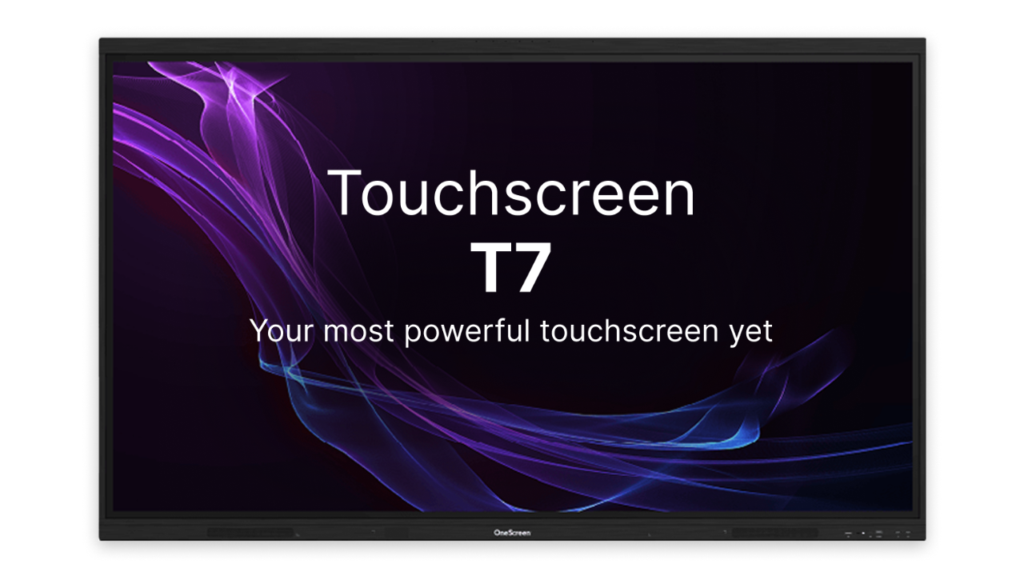
The T7’s strength is the balance it holds between feature richness and daily usability. Teachers who are not technology confident pick it up quickly, which matters enormously for schools deploying interactive smartboards at scale across departments.
OneScreen LED Video Wall
For spaces that exceed what a single panel can cover, the OneScreen LED Video Wall is the right category.
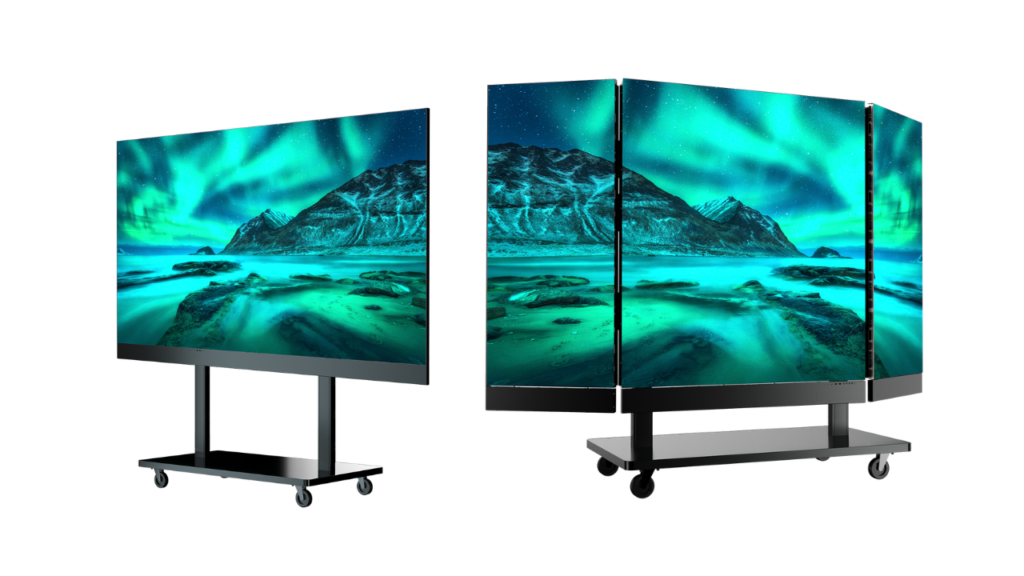
Large lecture theaters, school assembly halls, and multi-purpose rooms have spatial requirements no single interactive smartboard can meet. The LED Video Wall is modular and configurable to any dimension, with image quality that stays consistent at scale. For institutions running large-group instruction or school-wide events, the visual impact it creates is a different league entirely.
There Is a Guru for That: OneScreen’s Dedicated Support Program
One of the consistent failures of education technology rollouts is not the hardware. It is what happens after it arrives. Many vendors ship the board, hand over a manual, and disappear. Six months later, half the boards in the building are functioning as static screens because nobody trained teachers and getting support means an hour on hold.

OneScreen addresses this directly with their Guru support program. Every OneScreen product comes with a dedicated Guru — a real human expert assigned to your school who understands your setup, your teachers’ comfort levels, and your curriculum goals.
Guru support covers hands-on onboarding, live in-classroom training, proactive follow-ups, and troubleshooting that does not route through a call center. Find out more at OneScreen Guru Support.
How to Choose the Right Interactive Smartboard for Your School
Measure the room first. Screen size decisions should follow room dimensions and seat count, not the other way around.
Think about teacher confidence, not just technical specs. The most impressive interactive smartboard does not help if teachers find it intimidating. Ask vendors about onboarding before you buy.
Confirm platform compatibility before committing. If your school runs Google Classroom or Teams, verify the board integrates cleanly. Friction at the software level kills adoption.
Calculate total cost of ownership. Installation, mounting, cabling, and potential room rewiring all add to the purchase figure. Factor these in during the budget stage, not after.
Request a demo in an actual classroom. No education technology purchase should be made based on a product video. Ask OneScreen or your shortlisted vendor to run the board in a real teaching environment before you sign anything.
Frequently Asked Questions About Interactive Smartboards for Classrooms
What is the difference between an interactive smartboard and a regular display?
A standard display is passive — you can only view content. An interactive smartboard responds to touch, runs apps natively, and lets teachers and students annotate and interact directly on screen. The classroom engagement difference between the two is significant.
What size interactive smartboard works best in a standard classroom?
For rooms seating 25 to 30 students, 75 to 86 inches is the recommended range. Smaller rooms work with 65-inch panels. Lecture theaters and assembly halls benefit from LED video wall configurations.
How long do interactive smartboards last in a school environment?
A quality panel rated for 50,000 LED hours typically runs 10 to 15 years of daily classroom use. OneScreen education-grade builds are engineered specifically for continuous school contact.
Do interactive smartboards work without an internet connection?
Yes. OneScreen’s Core, T7, and Titan all run whiteboarding, annotation, and local file playback fully offline. Internet adds cloud access and remote management but is not required for a standard lesson.
Are interactive smartboards compatible with Google Classroom and Microsoft Teams?
Yes. OneScreen interactive smartboards support Google Workspace, Microsoft Teams, Zoom, and major LMS platforms. EDLA-certified boards like the Core install Google apps directly with single sign-on.
What is the OneScreen Guru support program?
The Guru program pairs your school with a dedicated human technology expert. Your Guru handles onboarding, staff training, and ongoing troubleshooting — a named person who knows your setup and makes sure the interactive smartboard gets used.
Final Thoughts
Choosing the right interactive smartboard for classroom use is a decision that compounds over time. Get it right and teachers use it daily for a decade. Get it wrong and you have expensive hardware collecting dust while teaching stays exactly the same.
OneScreen’s lineup covers the full range. The Core delivers EDLA certification and AI tools at an accessible price. The T7 holds the center ground with 40-point touch and classroom-ready software out of the box. The Titan takes performance to the top tier. The LED Video Wall handles spaces where no single panel will do.
Add the Guru support program and you have a partner that stays involved long after the delivery truck leaves. Request a demo to see what an interactive smartboard from OneScreen actually looks like when it is working the way it should.
Explore OneScreen’s interactive smartboards for education at onescreensolutions.com
